How a carer first gets into the Carelo carer app, locks it with a PIN, and finds their way around. The office creates the carer's login; the app opens with a private 6-digit PIN after that.
Where to find it
The Carelo carer app on iOS and Android. The in-app User Manual (side menu) holds the same steps for the carer.
How to
Sign in for the first time
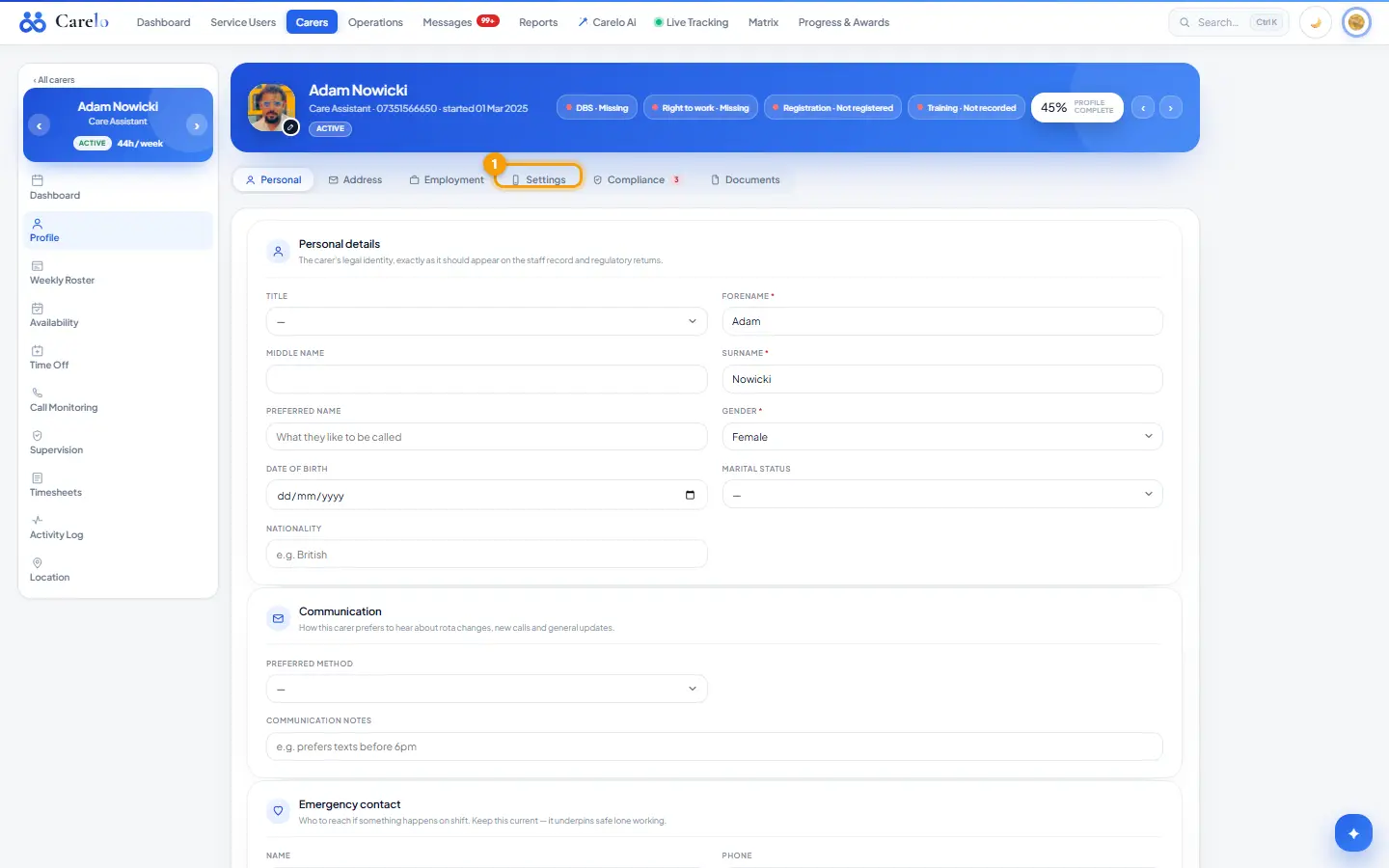
The office creates the carer's app account and sends a one-time setup code by email (Carers → open the carer → Profile → Settings tab → Open App access).
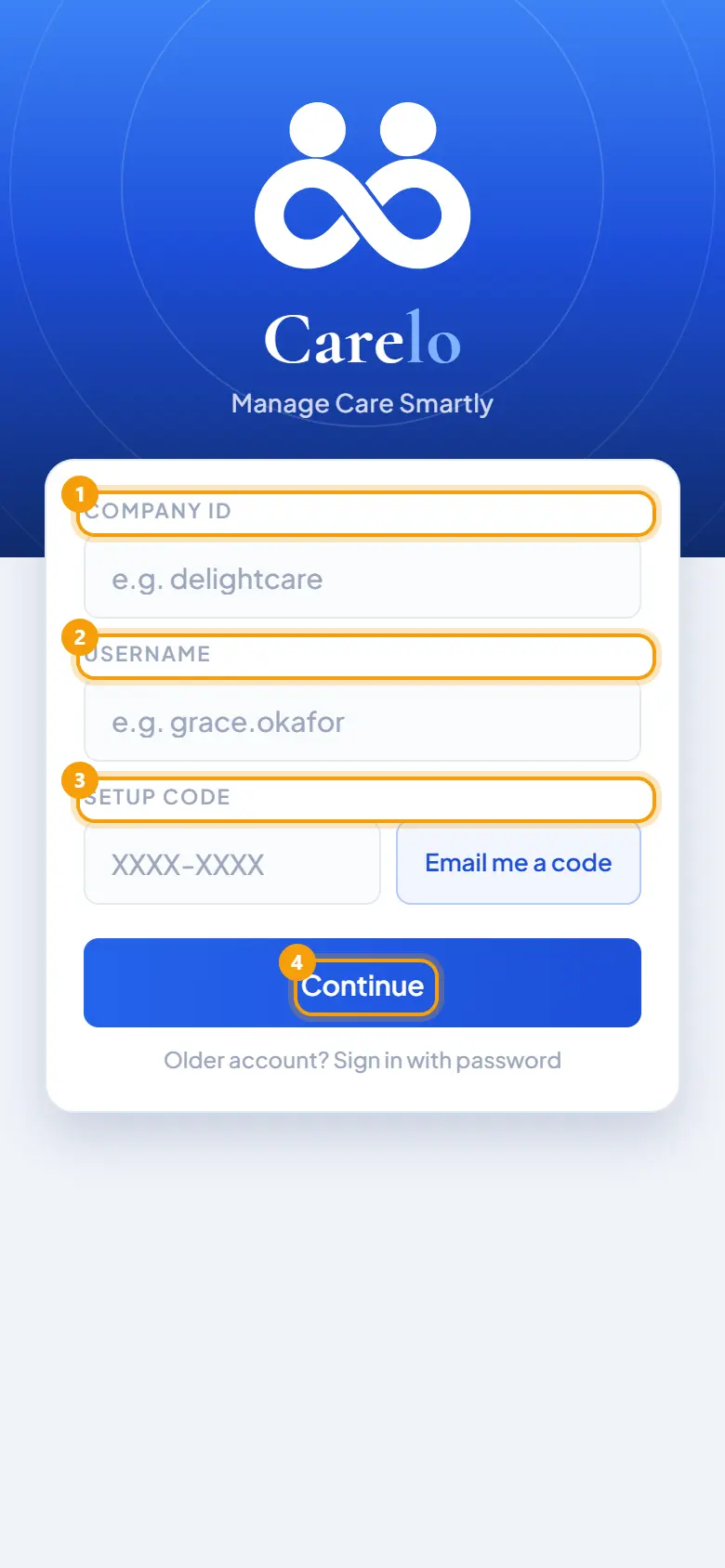
On the sign-in screen the carer types the Company ID (the company's Carelo address, e.g. delightcare), their Username and the Setup code, then taps Continue. No code to hand? Email me a code sends a fresh one to the carer's own email.
The app shows Details confirmed; the carer chooses a private 6-digit PIN, repeats it, and taps Set my PIN. Nobody in the office ever sees the PIN.
Every time the app opens after that, the carer types the 6-digit PIN on the keypad. A wrong PIN is reported straight away.
Older accounts can still use Older account? Sign in with password under the Continue button.
Find things
Five bottom tabs: Today, Roster, Timesheet, Holidays, Messages. They are always there.
The menu icon at the top-left of Today holds My Profile, Progress Score, Off Sick, Incident Report, Body Map Report, My Availability, Settings, the User Manual, the Knowledge Center, and Sign Out.
Change or recover the PIN
The PIN is changed under Settings → Security in the app.
A carer has 10 tries. If the PIN locks, they sign in again with username and password — no call to the office needed.
Sign out versus removing the account
Sign Out (bottom of the side menu) locks the app to the PIN. Next time it opens, the PIN alone gets them back in.
To remove the account from the phone completely, the carer uses Use a different account on the PIN screen.
Rules worth knowing
The office never sees a carer's PIN.
A PIN belongs to one login on one phone. A carer with logins at more than one company keeps a PIN per login (see *Switching between companies*).
Common questions
The carer forgot their PIN. After 10 wrong tries the app sends them to the password sign-in; they sign in with username and password and set a new PIN.
Can two carers share a phone? Yes — each login is added separately and asked for its own PIN (see *Switching between companies*).
Carer app — Progress Score and My Profile
1Progress Score
What it is
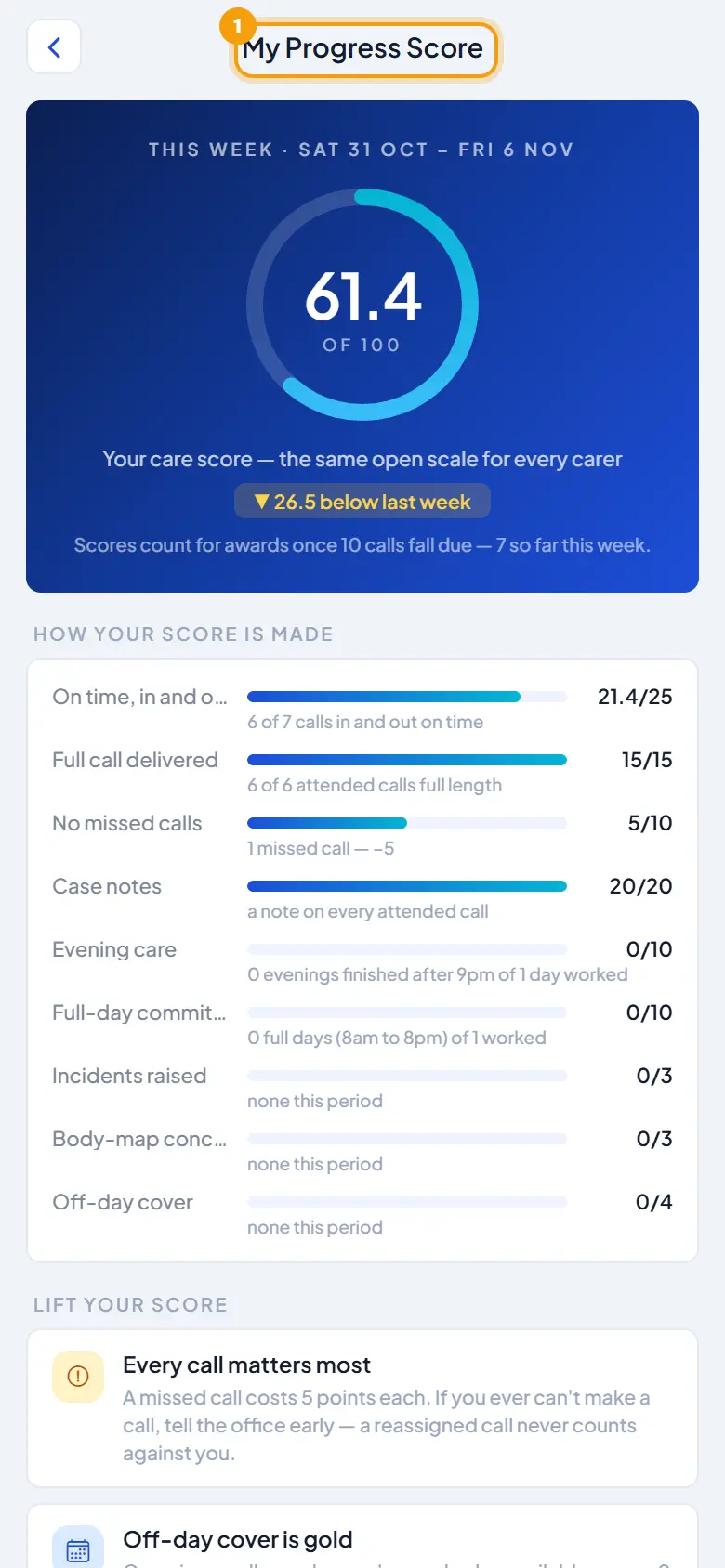
Progress Score is the carer's weekly score out of 100, shown on a ring, with tips. It is how good work gets seen and how Carer of the Week, Month and Year are decided. My Profile holds the carer's own details.
Where to find it
Carer app → menu → Progress Score / My Profile.
Progress Score
The score reflects on-time check-ins, delivering the full call, no missed calls, writing case notes, evening and full-day cover — plus bonus points for incident reports, body map reports, and covering an off-day.
Scores are recorded week by week. The company uses them to award Carer of the Week, Carer of the Month and Carer of the Year, with certificates (the office switches each award on or off under Settings → Award Cadence).
A few short tips show what would help the score most, using the carer's own numbers.
My Profile
Update details
Open My Profile: personal details, address, contact numbers, right to work, payroll and next of kin.
Change what is needed and tap Save changes.
Work details — username, role and branch — are set by the office and cannot be changed in the app.
Rules worth knowing
Every on-time check-in and every case note counts towards the score.
The office sees scores and awards on the Progress page.
Common questions
A carer's score dropped — why? A late or missed check-in, an incomplete call, or a visit without a case note that week. The in-app tips name the reason using their own numbers.
Carer app — My Availability
1Availability
What it is
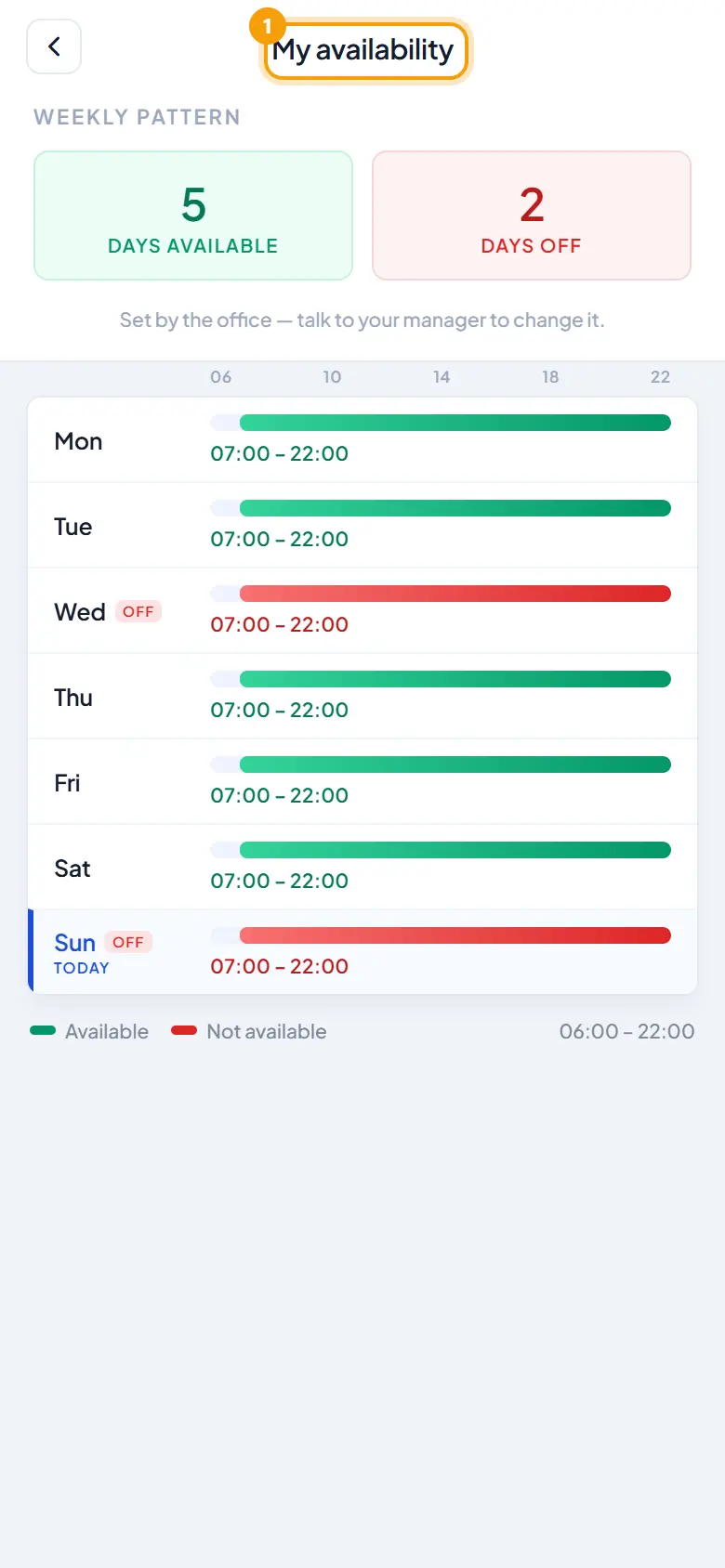
The working pattern the office has on file for the carer — the days and hours they are able to work. It is read-only in the app.
Where to find it
Carer app → menu → My Availability.
What the carer sees
The week in the company's order: Monday to Sunday unless the office has set a different first day (Settings → Week Starts On).
Each day shows a bar: green means available, red means not available, with the times printed underneath.
Rules worth knowing
The carer cannot edit availability in the app. Changes are made by the office on the carer's profile; the carer speaks to their manager.
Common questions
A carer's hours changed — where is it updated? On the carer's profile in the office app. The app shows the new pattern straight away.
Carer app — Care Charts at the call
1Care Chart
What it is
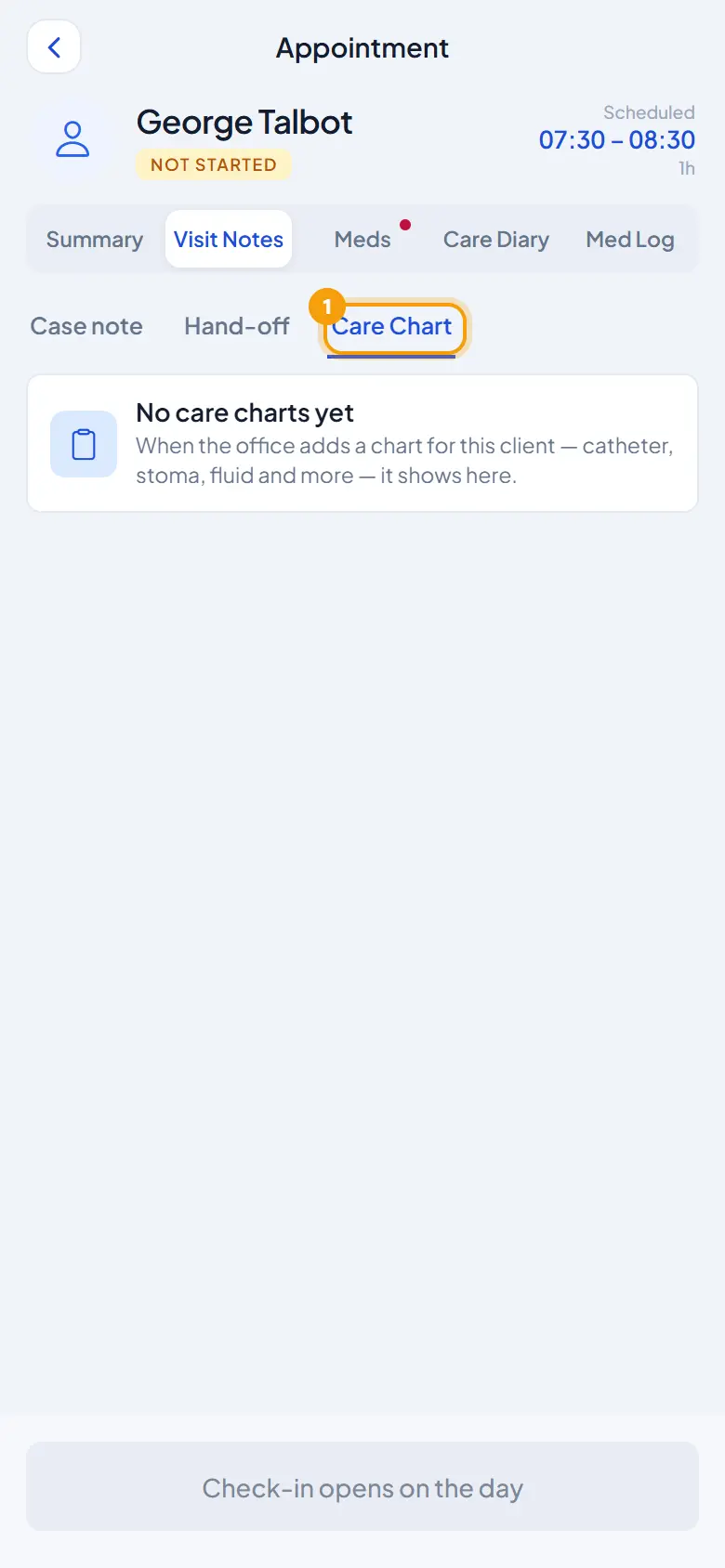
When the office sets up a chart for a client — catheter, stoma, fluid, bowel, repositioning, observations and more — it appears in the carer app under Visit Notes' third tab, Care Chart. Each entry takes a few taps. Problems reach the office the moment they are recorded.
Where to find it
Carer app → open a call → Visit Notes → Care Chart. The office switches charts on per service user and reviews entries under Operations → Care Charts.
How to
Record a chart
Open Visit Notes → Care Chart. Charts due on this call sit under This call with a Due mark; the rest sit under When needed. A client with no chart shows "No care charts yet".
Tap the chart and fill in the box — every answer is a tap. For a catheter: the ml in the bag, the colour, what was done (bag emptied, leg bag changed, site cleaned) and any problem.
Add a note if worth saying, then Record.
Problems
Blood, pain, a catheter not draining, red skin round a stoma, a high temperature — the box says so in red before recording, and the office sees it the moment it is recorded. With a problem, a short note is required: what happened and what was done.
At check-out
If a chart due on this call is still empty at check-out, the app asks: Record now or Check out anyway. Checking out anyway is shown to the office as "Not recorded".
Rules worth knowing
The office's response (Open → Monitoring → Resolved) is visible to the carer in the app side menu → Care Charts.
Families see chart entries in their app.
Common questions
A carer cannot see any chart. The office has not switched one on for that service user yet (Service user → Care Charts).
Carer app — check in and check out
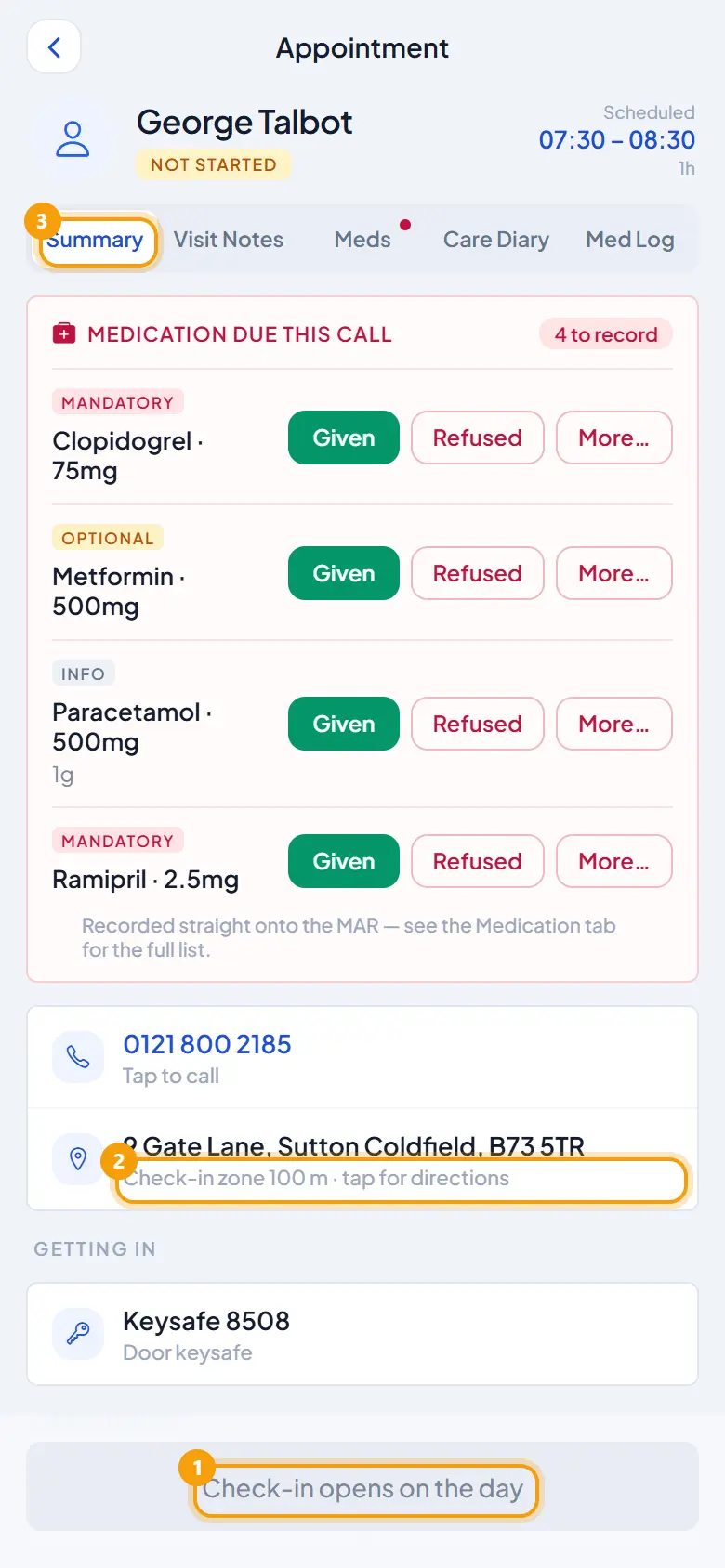
1Check-in opens2Tap for directions3Summary
What it is
Checking in tells the office care has started; checking out closes the visit. Both are one tap. The location is confirmed once at check-in; the app never follows the carer during the visit.
Where to find it
Carer app → Today (or Roster) → tap the call → Check In (blue) / Check Out (green).
How to
Check in
Arrive, then tap the call.
Tap Check In. The exact time is recorded. One-tap check-in opens 15 minutes before the call and stays available until an hour after the start (the office can change both under Settings → App & Check-In).
The app confirms the carer is at the client's home at that moment. Location must be switched on.
Check out
When care is done and still at the door, tap Check Out. The In and Out times then show on the call.
Checking out well before the scheduled end asks the carer to confirm, so nothing closes by accident.
If the end time passes while still checked in, an amber CHECK OUT NEEDED badge shows; the Check Out button stays there.
Request a manual check
Too late, out of zone, or the call already ended: Request manual check opens a form.
Mid-call: it asks only when the carer really arrived; they check out normally later.
Call already finished: it asks both the arrival and departure times.
Every time is picked from a 24-hour time wheel. The carer says why, and must answer any due medication not yet recorded (Given with time and amount, or Refused with the reason) before it can be sent.
The manager reviews it; the times only apply once accepted. If accepted mid-call, the carer is checked in from the stated time and checks out as normal; if accepted after the call, both times are recorded and the call shows complete.
Fix a missed call from an earlier day
Go back to the day with Today's date arrows, open the call, and Request manual check is there for up to 7 days back. Older than that, a quiet note asks the carer to speak to the office instead.
Rules worth knowing
Late, out of zone or without GPS, a check-in is recorded and flagged — never blocked. Only the office's Location check setting (Settings → App & Check-In) decides whether the zone is enforced; it is Off by default, so carers can check in from anywhere unless the office turns it On.
The record of a delivered call locks on check-out.
Nothing from a manual check request is recorded until a manager approves it.
Common questions
The carer is at the door but the app will not take one tap. The one-tap window has closed (default: an hour after the start). They use Request manual check with a reason.
Why does a call show as missed? Nobody checked in and the one-tap window has closed (or the call has ended, if later).
Carer app — hand-off to the next call
1Hand-off2Next call3Same call next week
What it is
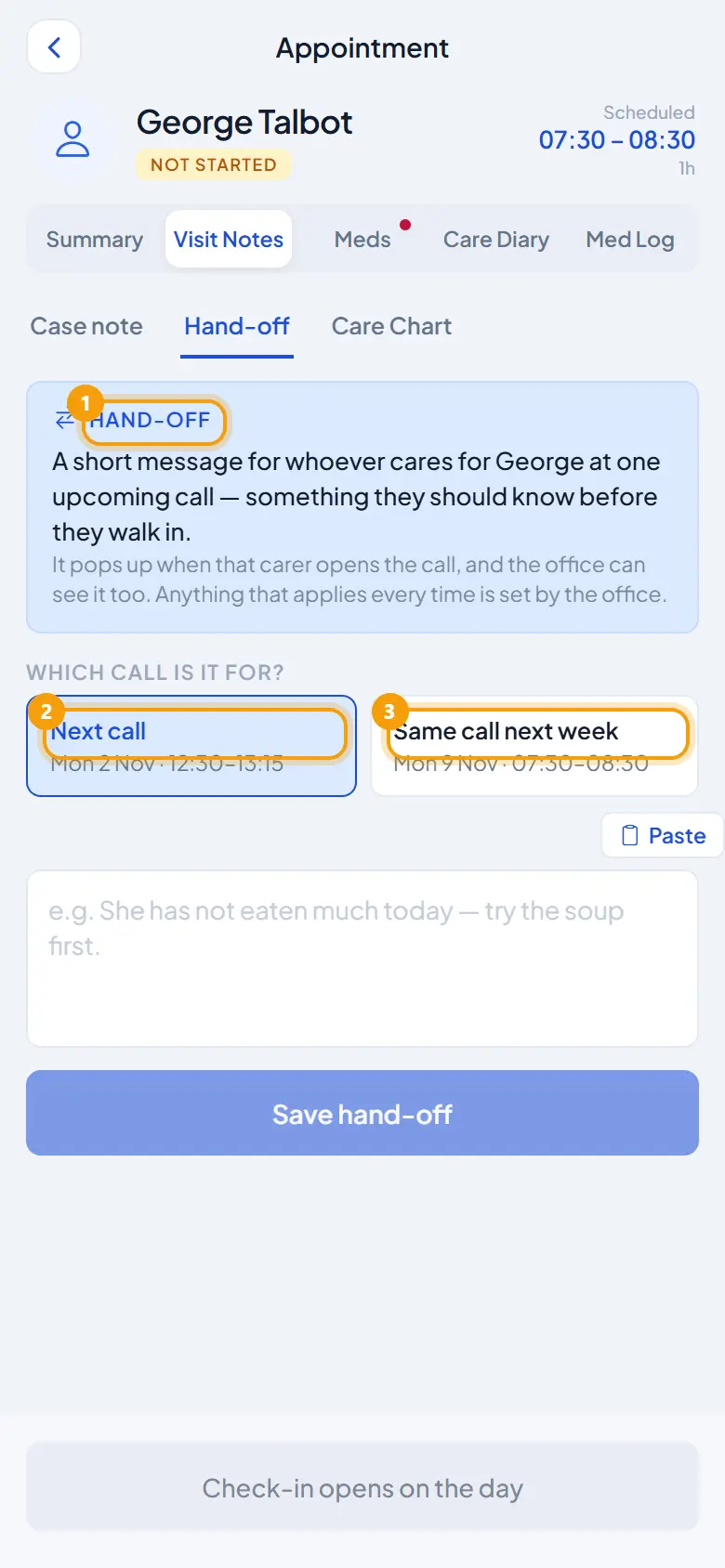
A hand-off is a message a carer leaves for one upcoming call: the next call for this client, or the same call next week. It pops up for whoever attends that call, and the office sees every hand-off on its Operations → Hand-overs page. Anything that should apply every time is written by the office, not from the app.
Where to find it
Carer app → open a call → Visit Notes tab → Hand-off (the other choice is Case note).
How to
Leave a hand-off
Inside the appointment, open Visit Notes and choose Hand-off.
Pick the call it is for — the next call, or the same call next week.
Write the message and save.
Read a hand-off
The carer attending the chosen call sees it at the top of Visit Notes as "the last carer's handover", alongside any office note for the visit.
Rules worth knowing
A hand-off targets exactly one call. There is no list of calls to choose from.
Standing ("every time") instructions are office-only, written on the service user's record.
The office sees all hand-offs on Operations → Hand-overs.
Common questions
A carer wants a note to show on every visit. That is a standing instruction: the office writes it on the service user's record.
Carer app — holidays and off sick
1Holidays
What it is
Carers book leave and report sickness from the app. Holiday requests feed the office holidays board; sickness reports tell the office at once so calls can be covered. Both show their status and any note the office wrote with its decision.
Where to find it
Holidays: bottom tab.
Off Sick: side menu.
How to
Book a holiday
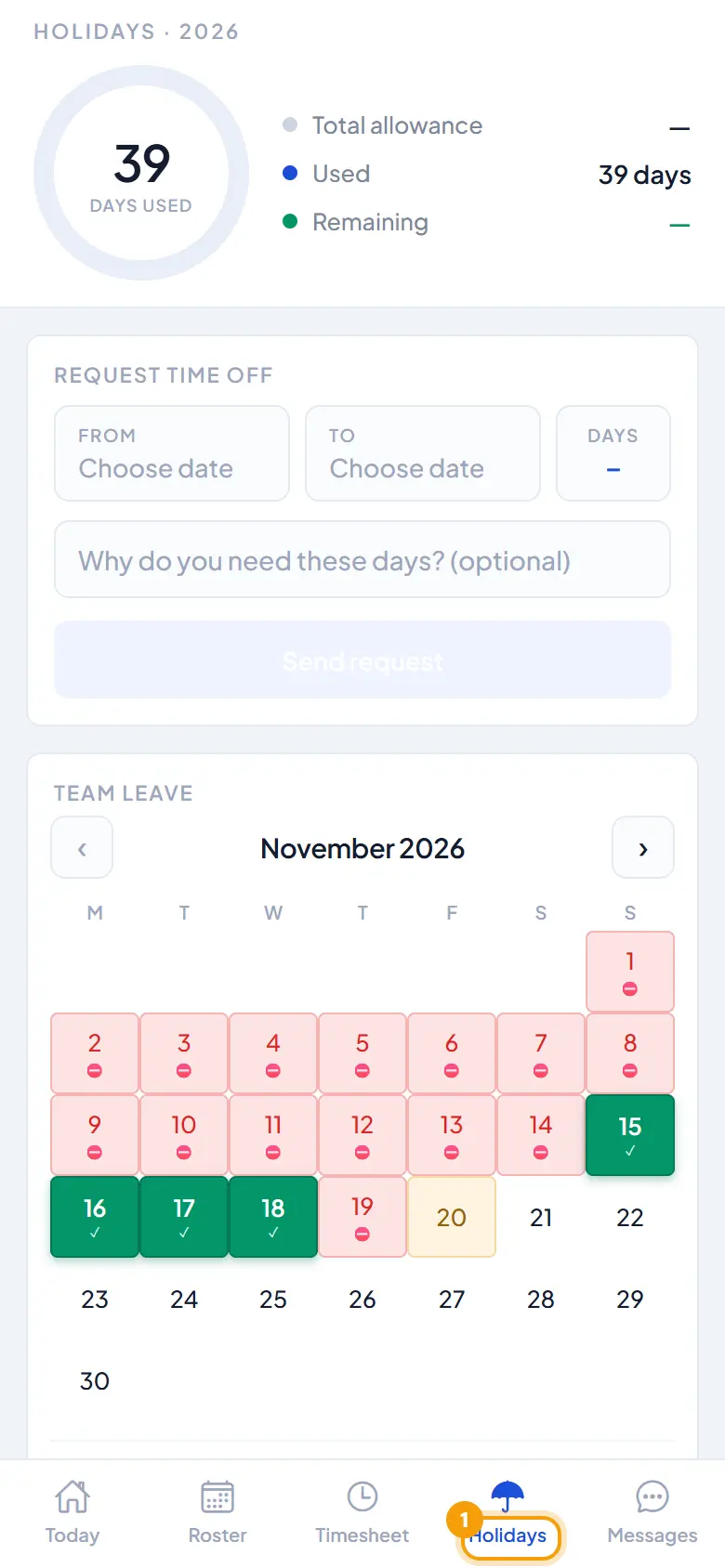
Open Holidays. The allowance sits at the top: total, days used, days remaining.
Tap From, then To. Days already fully booked show a ⛔ and cannot be chosen.
Add a reason if wanted (optional), then tap Send request.
The request shows "With the office" while it waits, then Approved or Declined. An office note appears under the request.
Team leave shows a simple calendar of how busy each day already is — a way to pick a day more likely to be approved.
Report sickness
Open Off Sick from the menu. Set the first day (defaults to today) and the last day if known.
Say what is wrong in one clear line.
Optionally say whether a GP or hospital was contacted and attach a photo or a PDF/Word file.
Tap Submit. The office is told immediately.
Every report stays listed under the form with its status — "With the office", Approved or Declined — and any office note.
Rules worth knowing
The app never shows company-wide lists; team leave shows how busy a day is, not who is off.
Decisions and notes come from the office's Holidays board and sickness desk.
Common questions
Why can't a carer pick a day? It is already fully booked (⛔).
Does the carer see why a request was declined? Yes, if the office wrote a note with the decision.
Carer app — important instructions before care starts
What it is
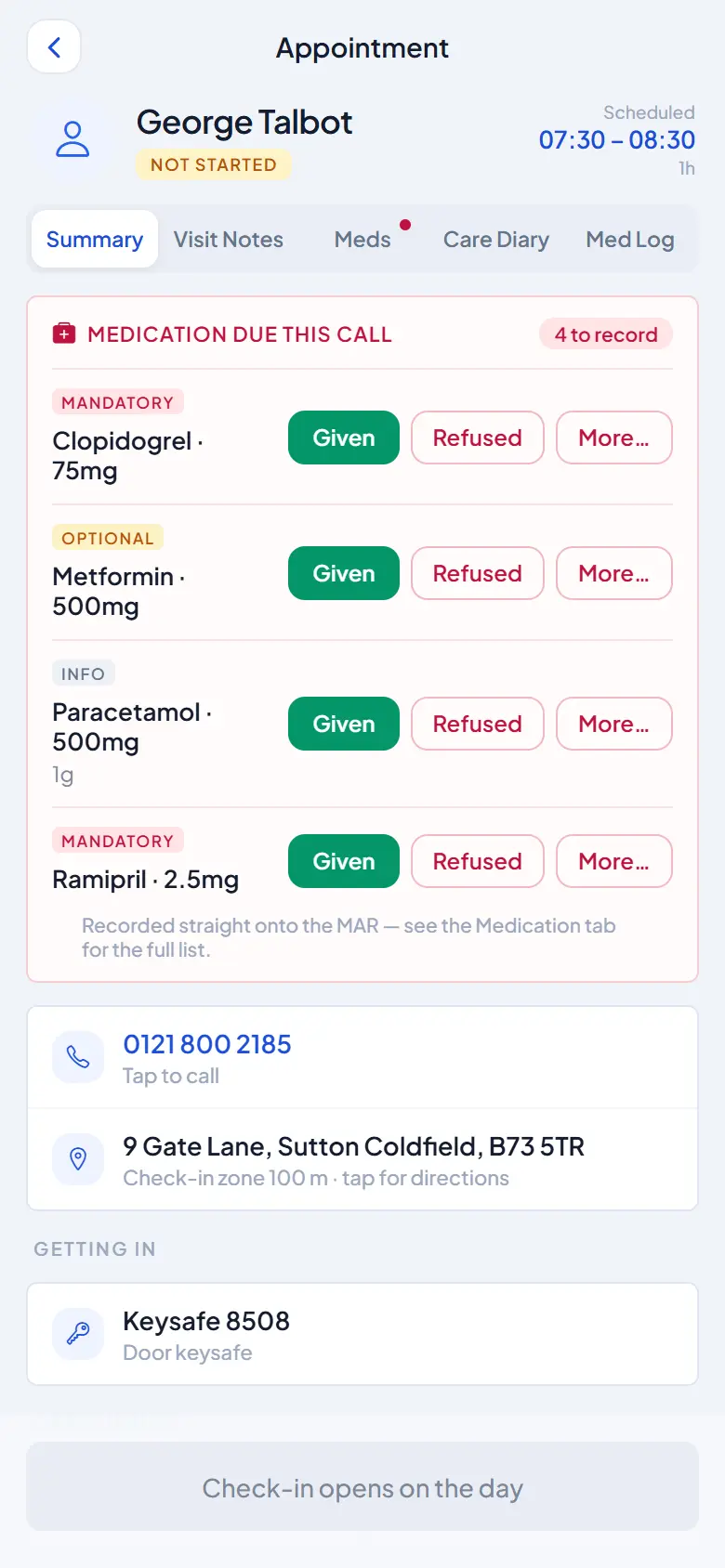
Before starting care, the carer checks what the office has told them about this client and this call. It all sits on the Summary tab of the call.
Where to find it
Carer app → open a call → Summary tab.
What the carer reads
From the office — about this call: any note or handover the office has written for this specific visit.
Handover from the last call: the most recent note left by the carer who visited before.
Care needs: what the client needs help with.
Risks: anything to be careful of, each marked Low, Medium or High.
Getting in: any keysafe code and access notes.
DNACPR: when the office has recorded a DNACPR (Do Not Attempt CPR), a red DNACPR strip sits under the client's name on every tab, with where the original form is kept, so the carer and paramedics can find it.
Rules worth knowing
Standing instructions that apply to every visit are written by the office on the service user's record, not from the app.
Key contacts are on the Summary tab too.
Common questions
Where does the office write a note for one call? On the appointment card in the office app; it shows under "From the office — about this call".
The keysafe code changed. Update it on the service user's profile in the office; the Summary tab reads from it.
Carer app — incident reports and body map reports
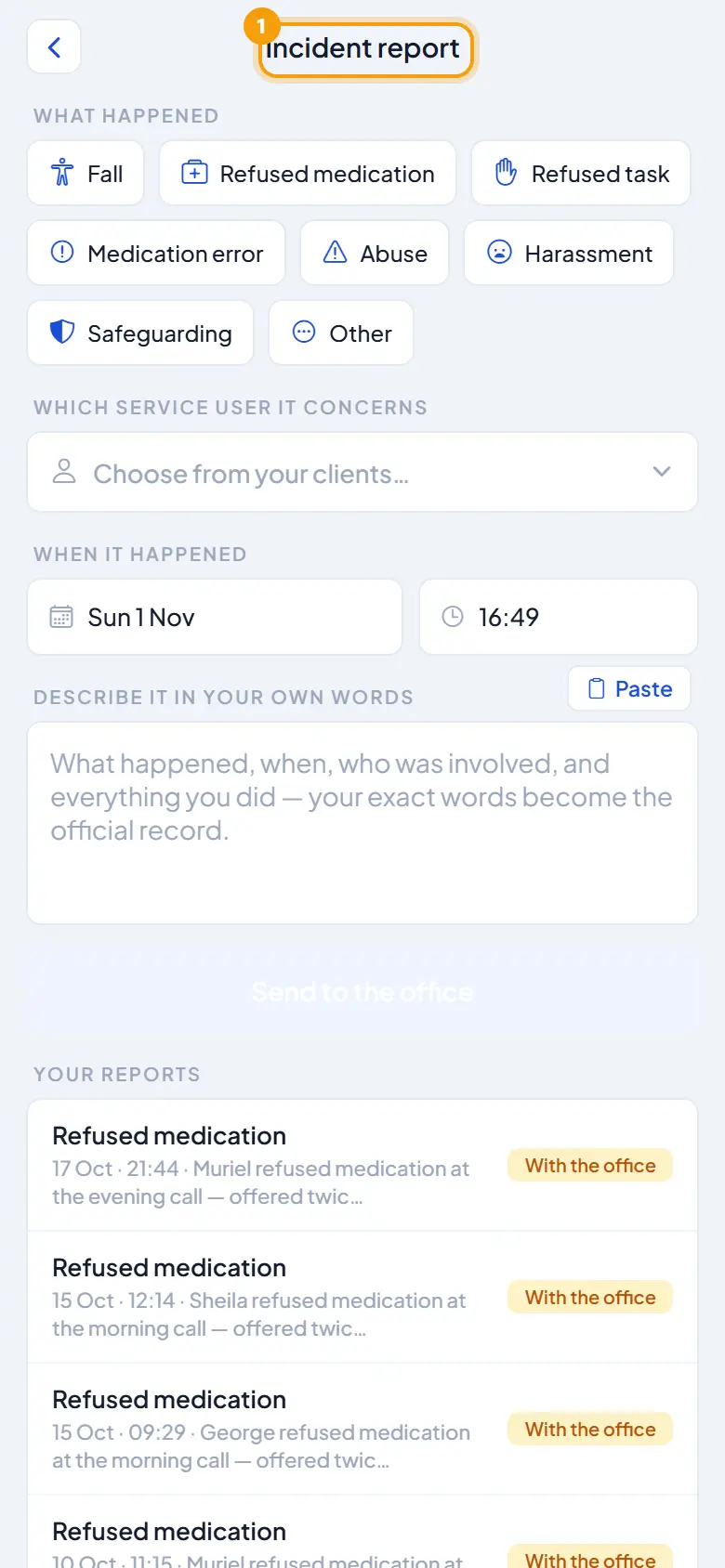
1Incident
What it is
Two reports a carer sends from the side menu: an Incident Report when something goes wrong (an accident, an injury, a worry) and a Body Map Report for a new mark, bruise, pressure area or skin concern. Both reach the office straight away and earn bonus points on the carer's Progress Score.
Where to find it
Carer app → menu icon (top-left of Today) → Incident Report / Body Map Report.
How to
Send an incident report
Open Incident Report from the menu.
Choose the service user from the carer's own clients, or tap Not about a service user.
Tap a category: Fall, Refused medication, Refused task, Medication error, Abuse, Harassment, Safeguarding, or Other.
Answer the quick questions for that category (for a fall: is the person injured, did they hit their head, were emergency services called).
Choose the date and time, describe what happened in the carer's own words — this becomes the official record.
Tap Send.
Send a body map report
Open Body Map Report from the menu and pick the service user. The figure matches their recorded gender and can be switched.
Tap the area noticed, front or back. A close-up of that part opens. Left and right mean the client's own left and right.
Choose the type of mark: Bruise, Cut or graze, Pressure sore, Rash, Swelling, Burn or scald, Skin tear, Ulcer or open wound, Redness or marking, Dry or broken skin, or Other.
Tap the exact spot to drop a numbered marker — up to 10 marks on one report.
Answer the quick questions (is it new, is the skin broken, does it hurt), describe it, and tap Send to the office.
Rules worth knowing
Reports save offline and send themselves when signal returns.
The office's reply to a report comes back to the carer as a personal notification, even on a quiet day off.
Common questions
Can a carer report something not about a client? Yes — Not about a service user on the incident form.
How many marks on one body map? Up to 10.
Carer app — medication (MAR)
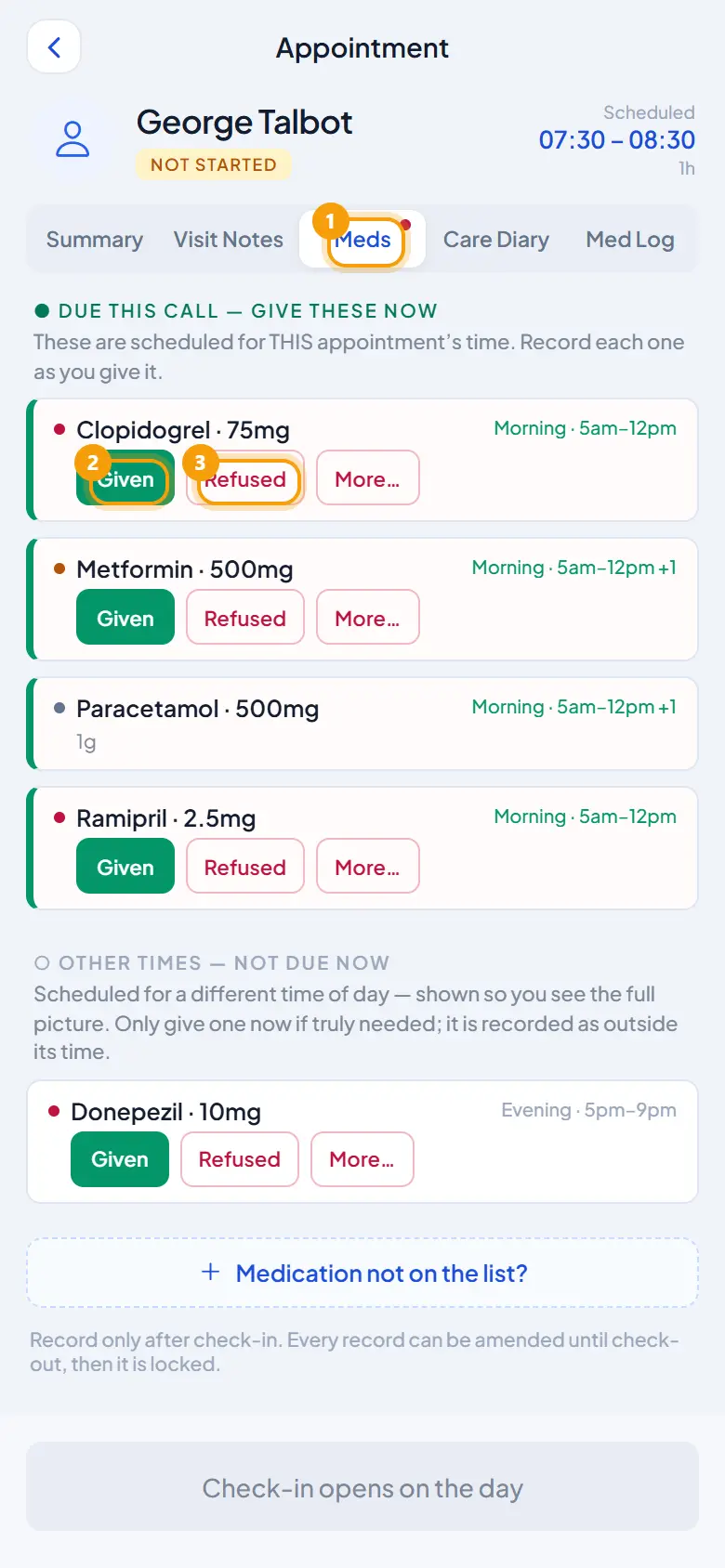
1Meds2Given3Refused
What it is
Recording what medication was given, refused and how much — a legal record. Every medicine due on the call is listed with its name, strength and time window (e.g. "Amlodipine · 5mg"). The office's MAR reads straight from these records.
Where to find it
Carer app → open a call → Meds tab on the client's page.
How to
Record a medicine as given
Tap Given.
Confirm how many were given — "1 tablet" is filled in; change it if the client took a different amount. The record saves both, e.g. "1 tablet · 5mg".
Add a note if anything was unusual.
Record a refusal
Tap Refused and write what happened. Never leave a due medicine blank — the office and family need to know either way.
Correct a mistake
While the call is still open, the carer's own entries show an Amend link. Once locked, only the office can amend it, with a reason.
How the app helps
While checked in, a reminder appears every 10 minutes naming the medicines still to record, and stops the moment everything is recorded.
Tapping Check Out with medicines unrecorded shows a clear warning first, because the record locks on leaving.
After check-out, Given and Refused lock and the row shows "🔒 Call completed — recording is locked."
Rules worth knowing
A manual check request cannot be sent until every due medicine is answered.
Medication records save offline and send when signal returns.
The Med Log tab shows every past medication record for the person, read-only.
Common questions
A carer recorded the wrong amount and has already checked out. The office amends it with a reason; the carer cannot.
Why does the app keep reminding the carer? A due medicine is still unrecorded. Record Given or Refused and the reminders stop.
Carer app — Messages with the office
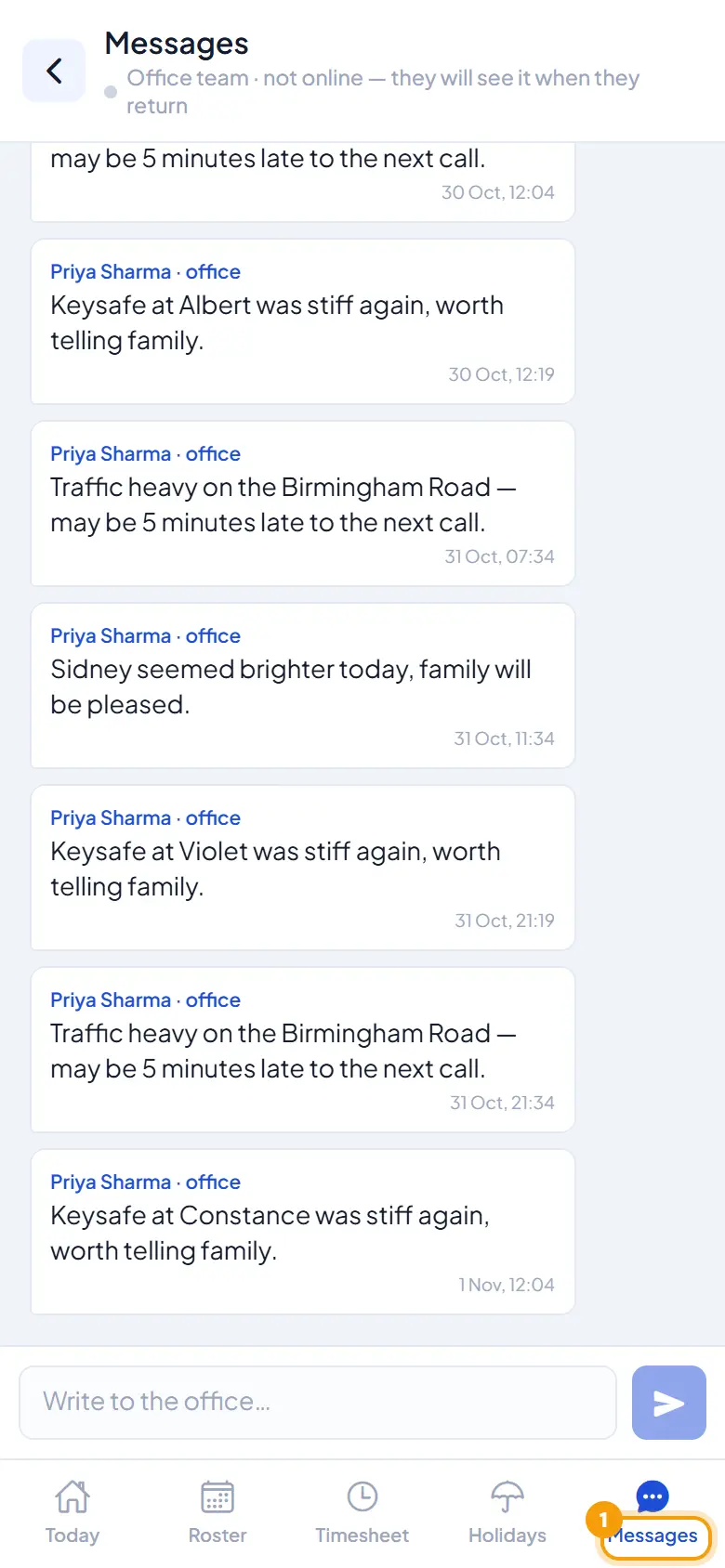
1Messages
What it is
A direct chat between the carer and the office, for anything not urgent enough for a phone call. Messages arrive in the office's Messages centre. Carers and families never message each other.
Where to find it
Carer app → Messages bottom tab.
How to
Send a message
Open Messages. The screen says whether the office team is online now, or that they will see the message when they return.
Type the message and tap the send button.
Edit or delete a sent message
Press and hold one of the carer's own messages:
Edit within 2 hours of sending (it shows a small "edited" label).
Delete within 24 hours — everyone then sees "This message was deleted".
After 24 hours a message is locked for good.
Rules worth knowing
A new office message reaches the carer as a notification.
The chat is carer ↔ office only.
Common questions
Can a carer message a family member? No. Families chat with the office, carers chat with the office; there is no carer–family channel.
Carer app — working with no internet
1Today
What it is
Nearly everything in the carer app works with no internet. The day, the client's details, the care plan and assessments, medication, contacts and the key safe open from the copy saved on the phone. Checking in and out, case notes, medication records and reports are recorded as usual; only sending them to the office needs a signal.
Where to find it
Nothing to switch on — the app behaves this way by itself.
How it works
Anything recorded without signal says "Saved — will send" until it goes.
A quiet line at the top of the day tells the carer how many things are waiting, and disappears by itself once they are through.
The app sends them itself the moment the phone is back online, in the background.
The PIN opens the app offline.
Rules worth knowing
Times are recorded at the moment the carer tapped, not when the item reaches the office.
On a phone with more than one login, each login's queue sends only while that login is active.
"My Service Users" is read-only offline.
Live monitoring in the office updates when the item arrives, so a carer deep in a no-signal area can look "not checked in" until they are back online.
Common questions
A check-in shows late in the office but the carer says they were on time. Ask whether they had signal. The recorded time is the tap time; it arrives when the phone reconnects.
Does the carer have to do anything to send the queue? No. It sends itself when the connection returns.
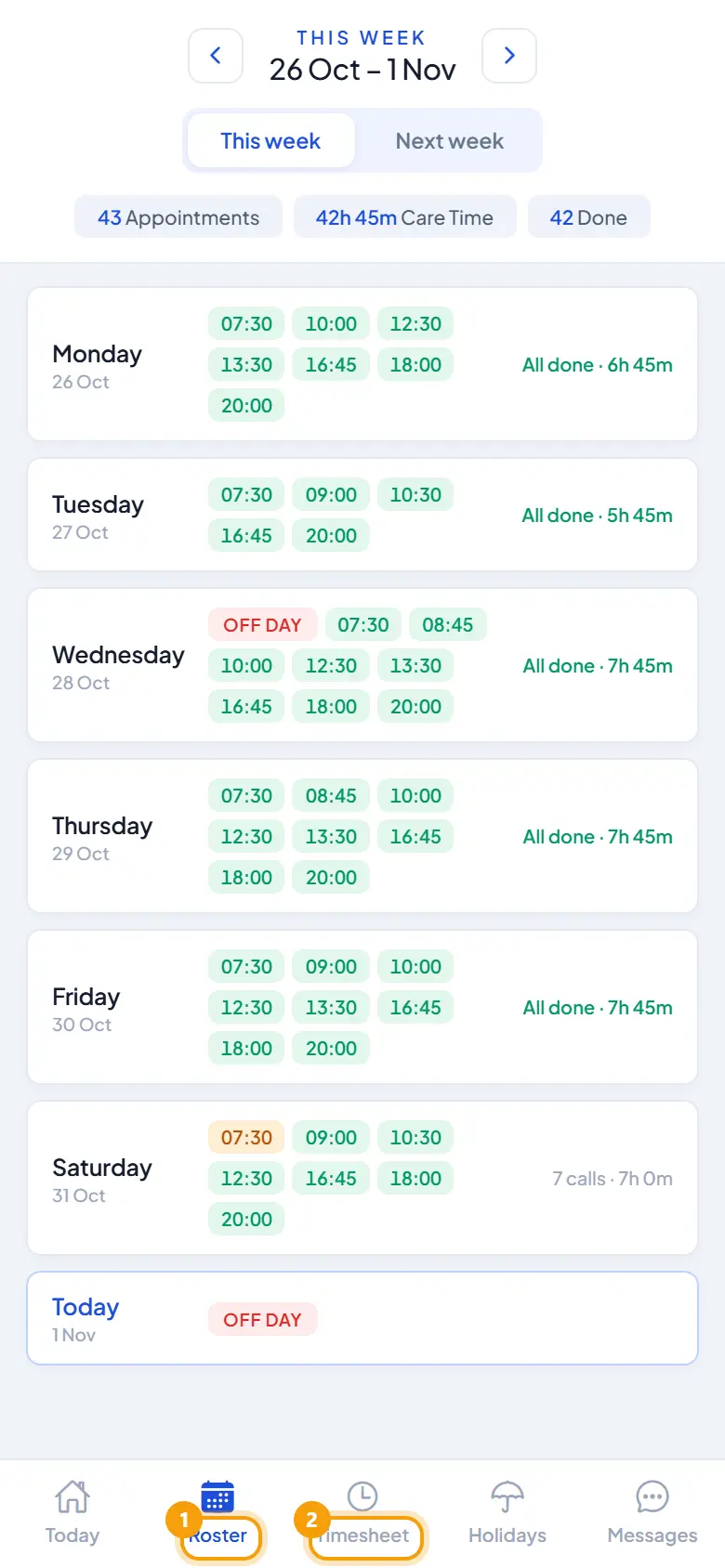
Carer app — Roster and Timesheet
1Roster2Timesheet
What it is
Roster shows the carer's week at a glance; Timesheet shows the hours actually worked. How far ahead a carer can see is set by the office: this week and next (default), or four weeks with weeks 3–4 marked provisional (Settings → App & Check-In → Carer sees rota ahead).
Where to find it
Carer app → Roster and Timesheet bottom tabs.
How to
Read the roster
Open Roster. The week is in the company's order (Monday to Sunday unless the office has set a different first day). Tap a day to expand it and see each call's time, client and status.
Tap a call to open it — it works exactly like Today: check in, add a note.
Use the arrows for other weeks. Anything more than a week ahead is provisional and may still change.
Read the timesheet
Open Timesheet. It shows booked, done, missed and cancelled hours, by day or by week.
Tap a day for the exact detail: real check-in and check-out times for every call.
Rules worth knowing
Roster delivery to the phone covers this week and next in full; further weeks only when the office has set 4 weeks.
The app never marks "in progress" on a rota. A call is either on the roster or not.
The hours the carer sees are counted by the company's timesheet rule (Settings → Timesheets).
Common questions
A carer cannot see week 3. The company is on the default 2-week setting. The office can change it to 4 weeks.
The timesheet hours differ from what the carer expected. Check the company's Count hours from rule under Settings → Timesheets — rostered once checked in, exact check-in/out, or schedule.
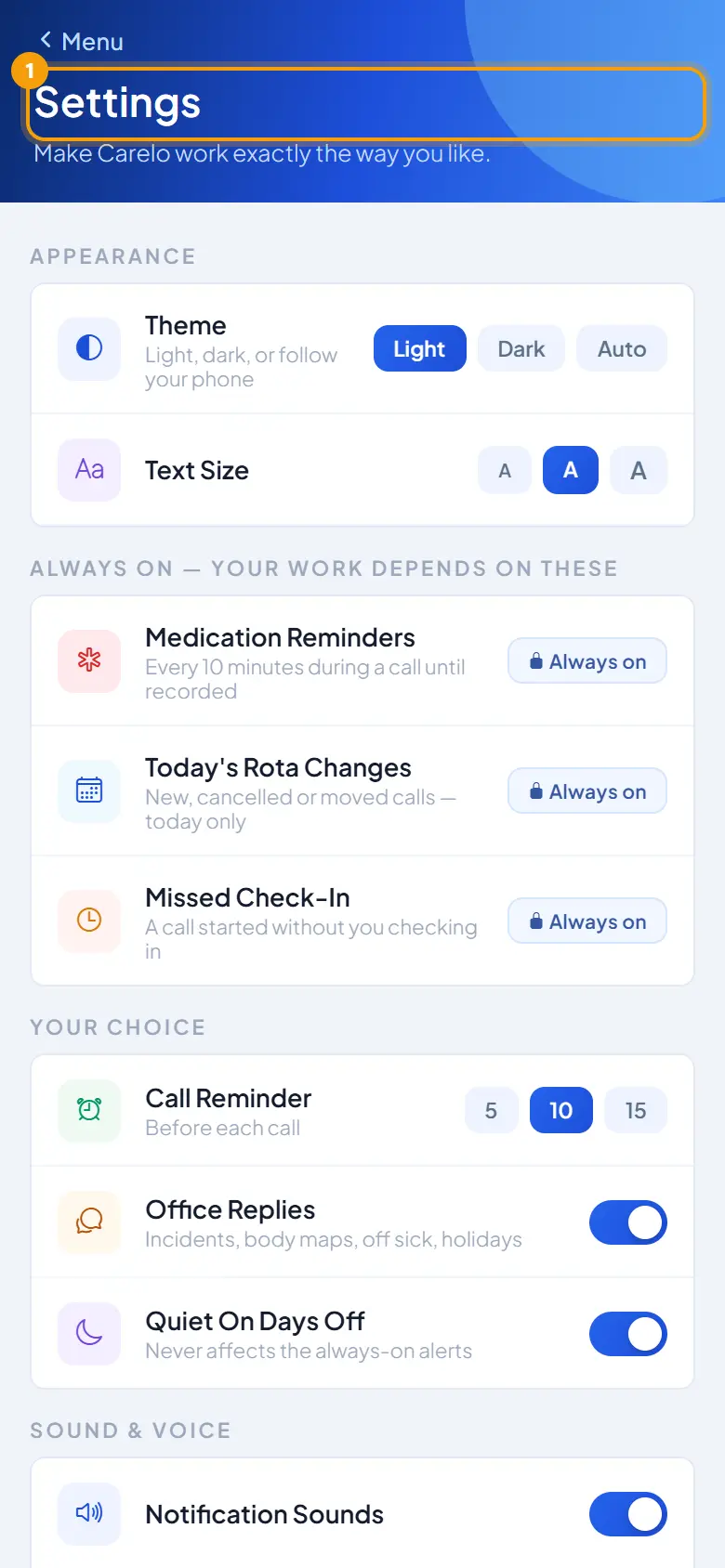
Carer app — Settings and alerts
1Settings
What it is
The carer app's own Settings: appearance, text size, which alerts the carer chooses, and PIN security. Three alerts are always on because the carer's work depends on them.
Where to find it
Carer app → menu → Settings.
What the carer can set
Appearance: Light, Dark, or Auto to follow the phone. A larger text size is also available.
Call reminder: 5, 10 or 15 minutes before each call. Voice Call Reminders says it out loud — useful between calls when driving.
Quiet on your days off: days without calls stay peaceful; only personal replies (holidays, incident and body map responses) come through.
Security: change the PIN. There are 10 tries; if it locks, the carer signs in again with username and password.
Alerts that are always on
Medication reminders, today's rota changes, and missed check-in alerts cannot be switched off.
At the minute a call starts the app prompts the carer to check in; when its end time passes it prompts to check out — even if the app is closed. One tap goes straight to the call.
Rules worth knowing
The office never sees the carer's PIN.
Both apps show an update notice when a new version is in the stores; updating keeps the carer signed in.
Common questions
A carer says they get no reminders. Check the phone's notification permission for Carelo, then the carer's call reminder choice in Settings.
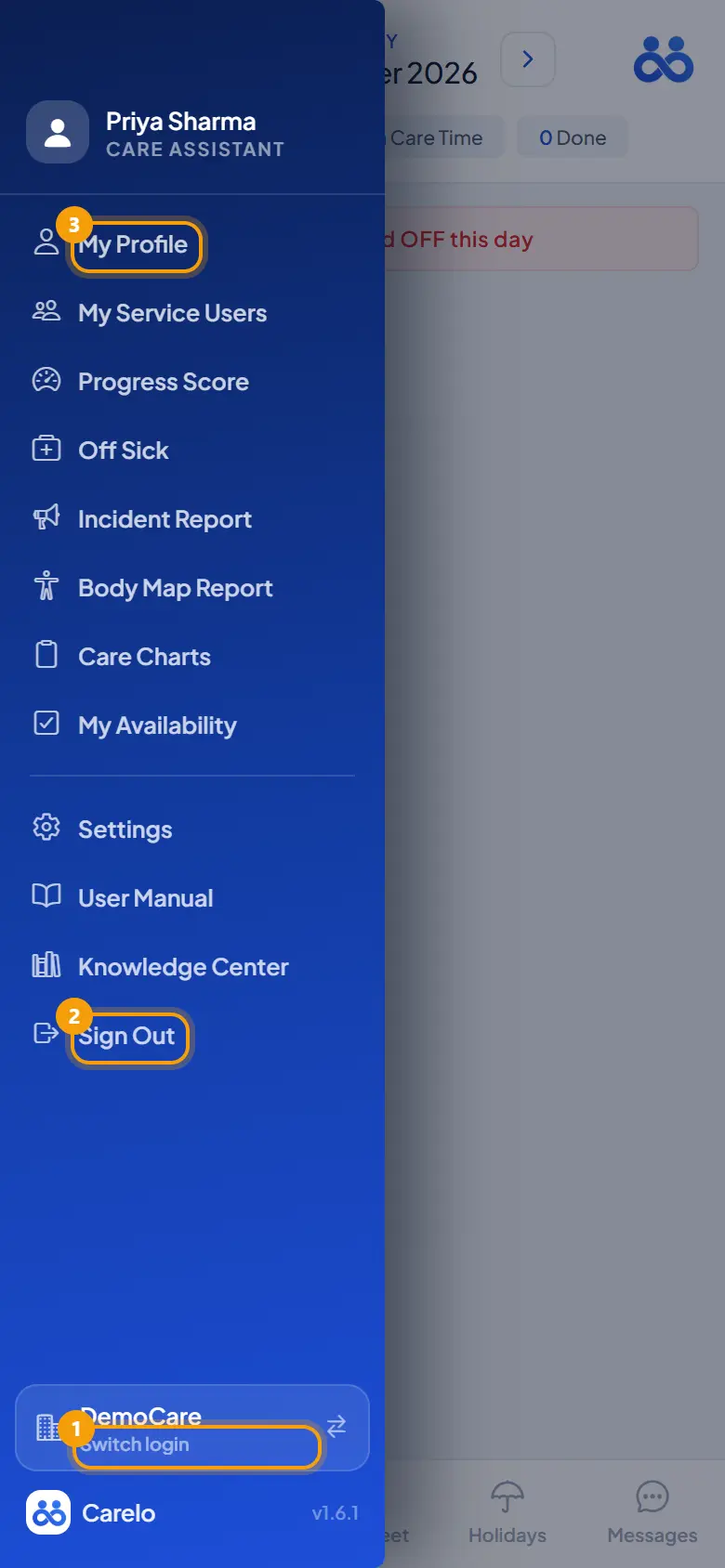
Carer app — switching between up to three companies
1Switch login2Sign Out3My Profile
What it is
A carer who works for two or three care providers that all use Carelo keeps each login on one phone and switches between them from the side menu, without signing out. Each company keeps its own separate login; nothing one company stores can ever show inside another.
Where to find it
Carer app → side menu → the slim row under Sign Out showing the current company name and Switch login.
How to
Switch to another login
Tap Switch login under Sign Out.
The pop-up lists the logins on this phone, each with the company name and carer name ("· signed in now" on the current one), with the words "The PIN of the one you choose is asked."
Tap a login and enter its PIN.
Add a login
In the pop-up, tap Add a login ("Another company, or another carer · up to three").
Set it up with that office's setup code and choose its PIN.
Remove a login from the phone
Another login: tap the remove mark next to it → Remove …? The carer's login comes off this phone; their access at that office is untouched, and the login can be added again with a setup code.
The login currently in use: use Sign Out, then Use a different account on the PIN screen.
Rules worth knowing
At most three logins on one phone.
Two different carers may share one phone the same way — each login has its own PIN.
Offline queues are tagged per login and send only while that login is active; the other company's items wait for its login.
This is never a shared identity: each company has its own user, and privacy rules rest on that.
Common questions
Does switching sign the carer out of the other company? No. The other logins stay remembered; only the active one changes.
A carer forgot one login's PIN. They recover that login on its own sign-in screen; the other logins on the phone stay as they were.
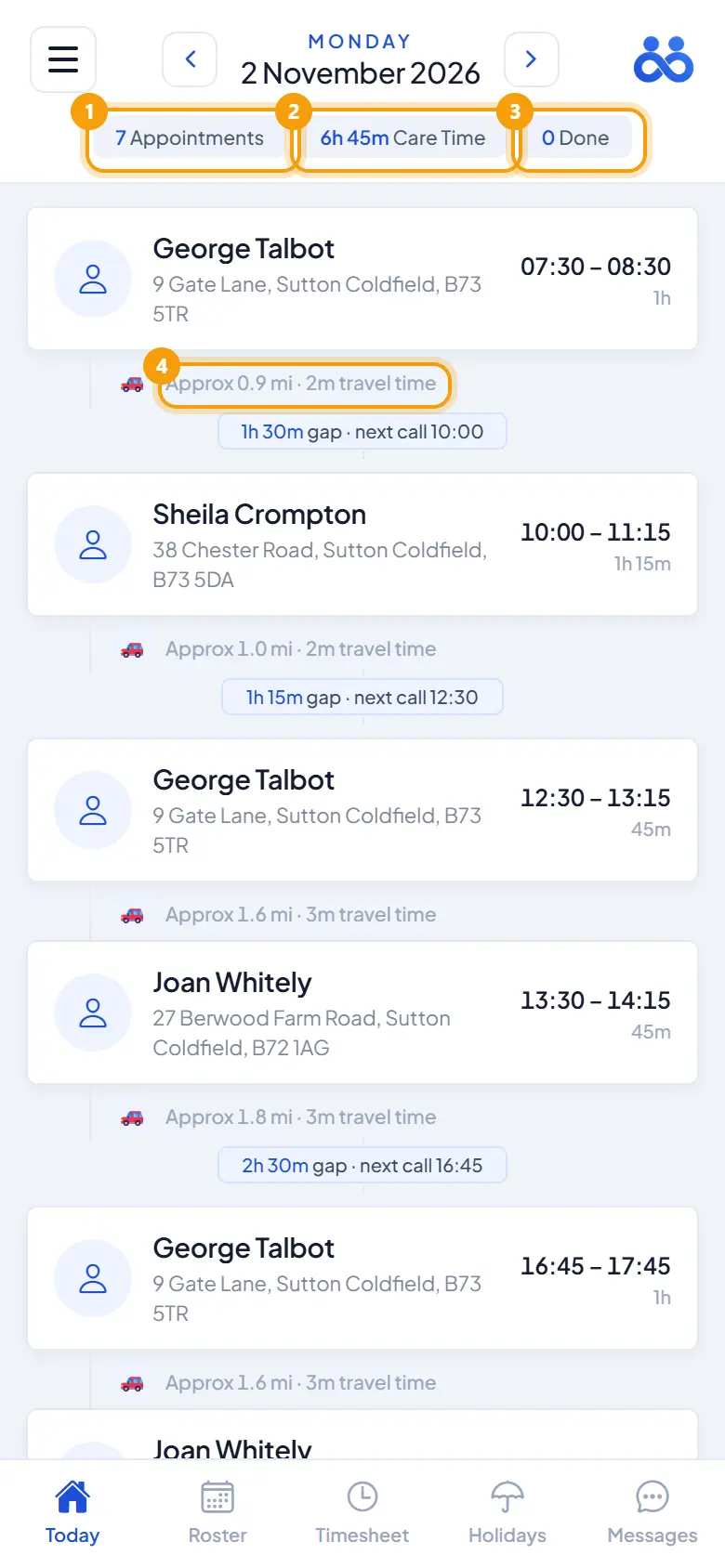
Carer app — Today and the carer's calls
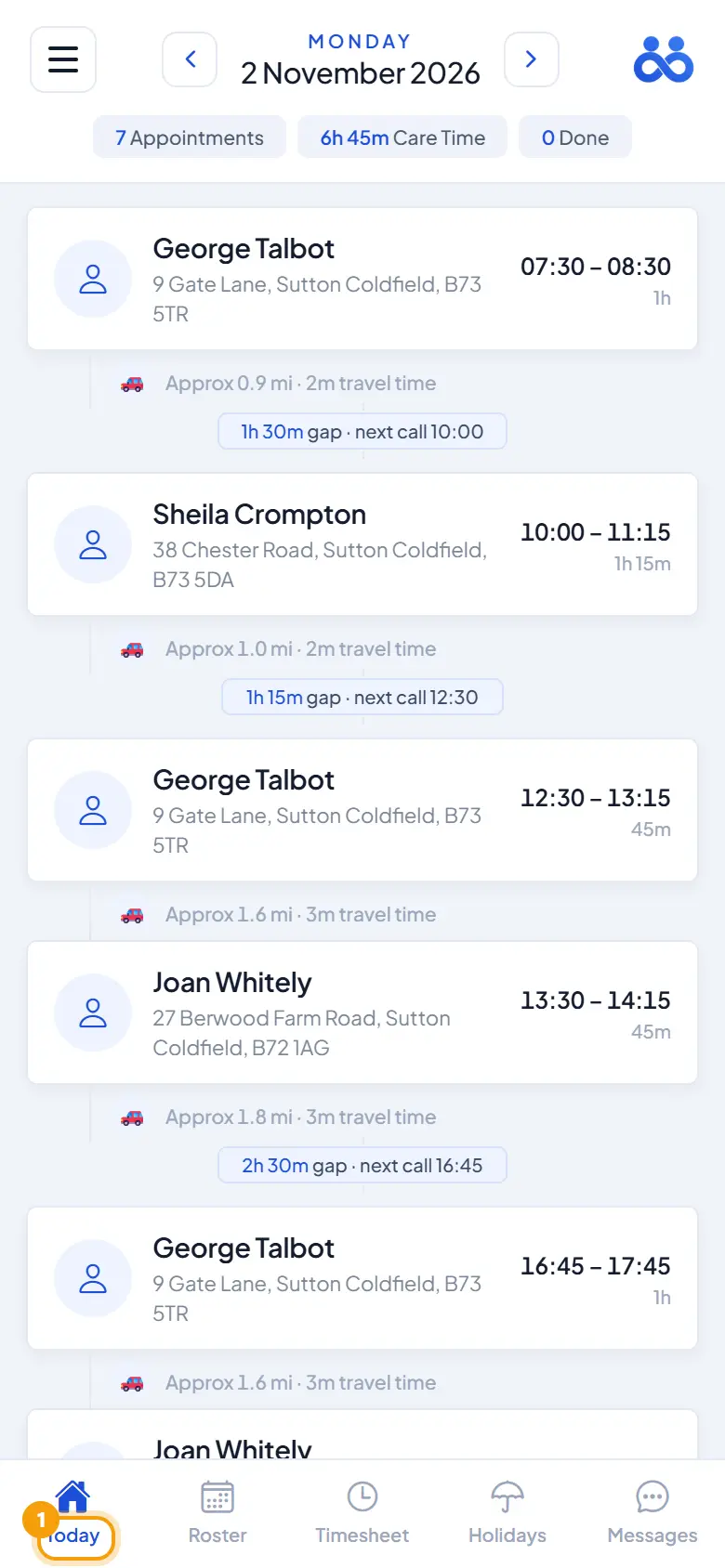
1Appointments2Care Time3Done4travel time
What it is
The Today screen is the carer's day at a glance: every call in time order, each card showing the client name, address, and the time and length of the visit, with a short status line underneath.
Where to find it
Carer app → Today tab (the first bottom tab).
What the carer sees
The day's numbers at the top: how many appointments today, total care time, and how many are done so far.
A status line under each call saying exactly where things stand.
Overrun: if the carer checked in but the end time has passed with no check-out, the card turns amber and reads "In HH:MM — check out!". Tapping it opens the call to check out.
Travel between calls: approximate distance and travel time to the next call, using the carer's usual way of getting about.
Double-up calls carry the two-people icon and a "Double-up · with …" line naming the partner. Each carer checks in and out themselves and writes their own case note; inside the call they can see whether the partner has arrived and what they wrote, so the record proves two carers were there.
Cancelled calls stay on the list, greyed out with the office's reason, but cannot be opened. There is nothing to do inside a cancelled call.
How to
Open a call
Tap the card from Today (or Roster). Check in, notes, medication and the client's details are inside.
Look at another day
Use the date arrows on Today. A missed call from up to 7 days back can still be opened for a manual check request (see *Check in and check out*).
Refresh
The screen refreshes itself about every 30 seconds. Pull down to refresh at any time.
Rules worth knowing
A cancelled call is locked for the carer; only the office can change it.
On a double-up, both carers' records are separate and both are needed.
Common questions
A carer says a call vanished from Today. Check the rota: a call moved to another carer or another day leaves their Today. A cancelled call does not vanish — it shows greyed out with the reason.
Carer app — Visit Notes, Care Diary and Med Log
1Visit Notes2Case note3Care Diary4Med Log
What it is
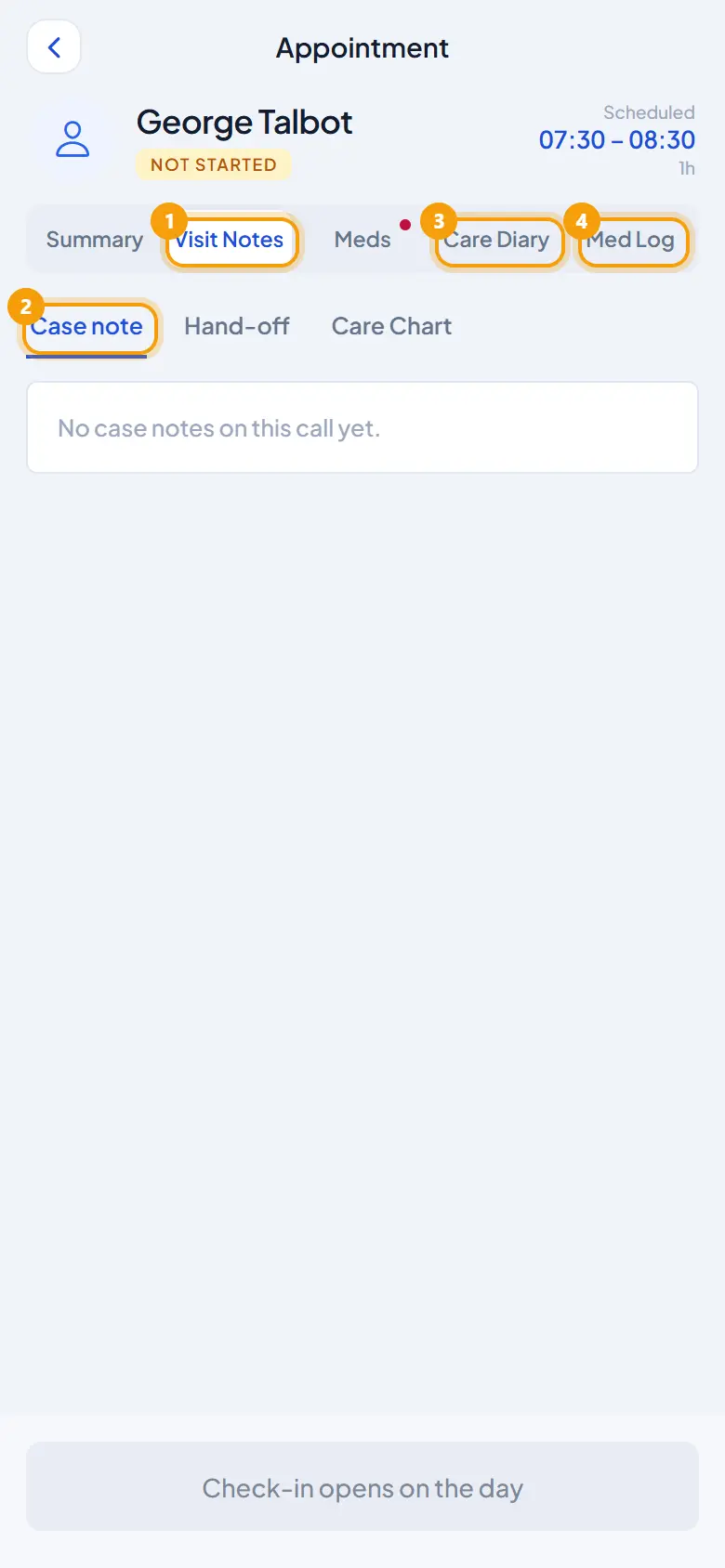
Visit Notes is the home for everything note-related on a call: the office's note about this visit, the last carer's handover, the "Write this appointment's case note" button, and every past note. The Care Diary tab shows every note ever written about the person; the Med Log tab shows every medication record the same way. Both are read-only.
Where to find it
Carer app → open a call → Visit Notes tab. The sub-tabs across the client's page are Summary · Visit Notes · Meds · Care Diary · Med Log.
How to
Write the case note
Open Visit Notes. Read the office note and the last handover at the top first.
Tap Write this appointment's case note. Before check-in the button sits dimmed with "Check in to write this visit's note"; it lights up at check-in.
Tick what was done in the two-column list (washing, medication, meals, companionship and more). Ticking is optional, with no limit.
Write what happened in the carer's own words, then Save.
Add another note later
Notes can be added any time until midnight, even after check-out. Ticks start fresh each time the note is opened.
Read history
Visit Notes lists every note for this call with date, time, who wrote it, and its "Care given —" line.
Care Diary shows every note about this person, week by week, by every carer — the same diary the family reads.
Med Log shows every medication record the same way. Key contacts are on Summary.
What the office sees
The ticks compose into one line above the note wherever the office reads it, e.g. "Care given — washing & personal care · medication · companionship". The carer's own words follow underneath, unchanged.
Rules worth knowing
The office can make a case note compulsory at check-out and set a minimum length (Settings → App & Check-In). Below the minimum the app shows a quiet counter and holds Save.
Notes save offline and send themselves when the phone has signal (see *Offline working*).
Common questions
A carer says the note button is grey. They have not checked in yet. It lights up at check-in.
Can a carer edit a note after midnight? No. New notes stop at midnight; the office amends records with a reason.
A family login sees one person's care, nothing else: the two-week schedule with live check-ins and check-outs, care documents, case notes with comments, medication given, the office message thread and carer reviews. Everything is scoped to the linked person; the family never sees other service users, carers' lists or company-wide information.
Where to find it
The same Carelo app as carers, on iOS and Android. At sign-in the family member chooses Family. The office creates the login on the service user's profile (see *Family login*).
What the app shows
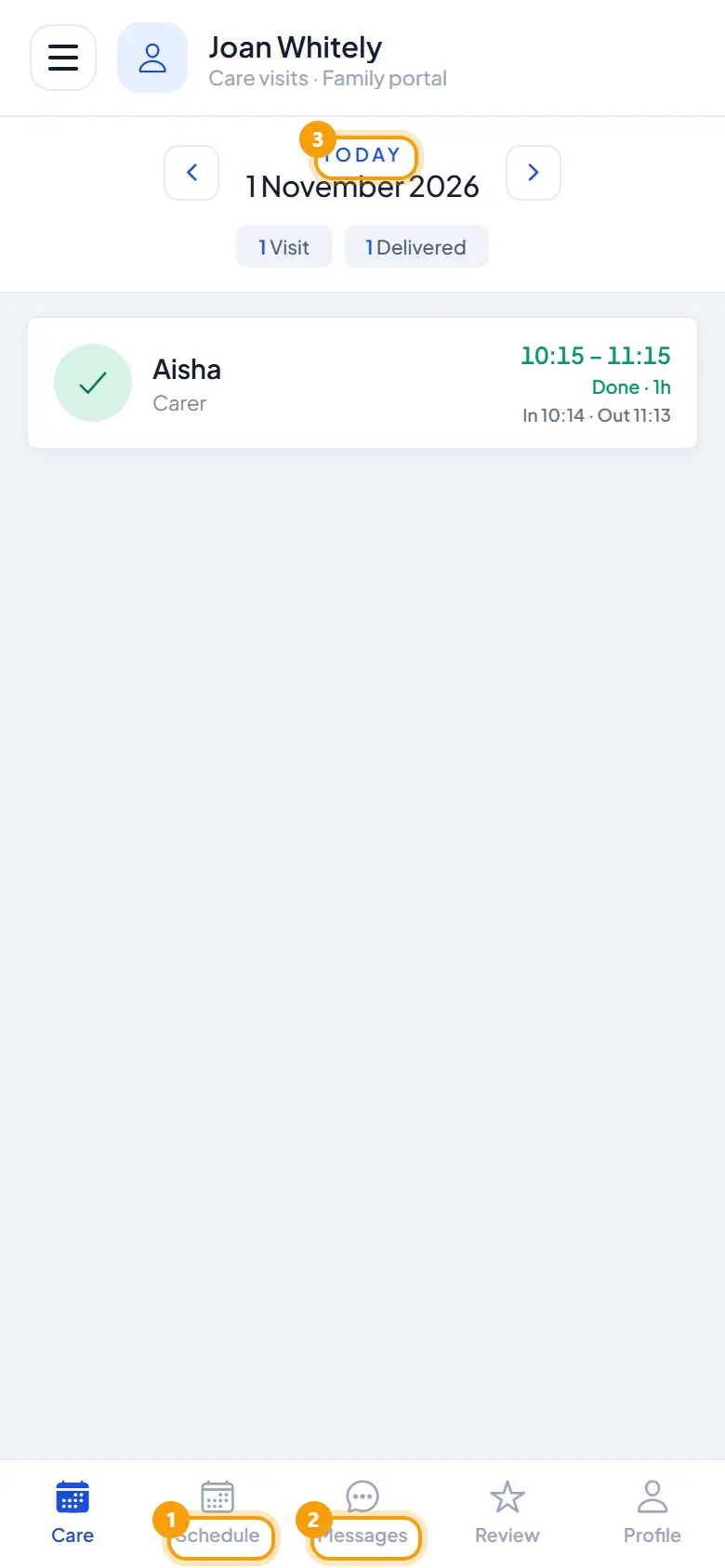
Bottom bar: Care · Schedule · Messages · Review · Profile.
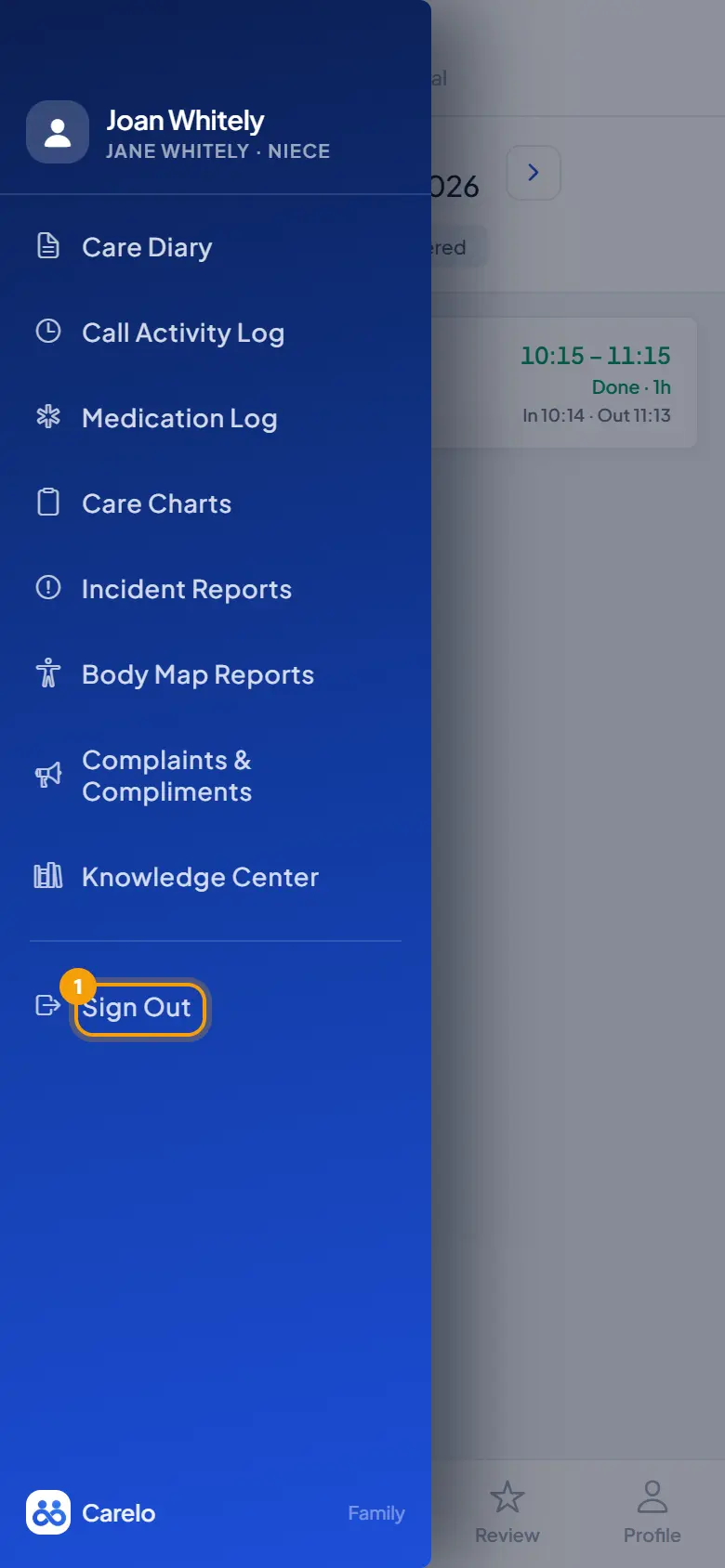
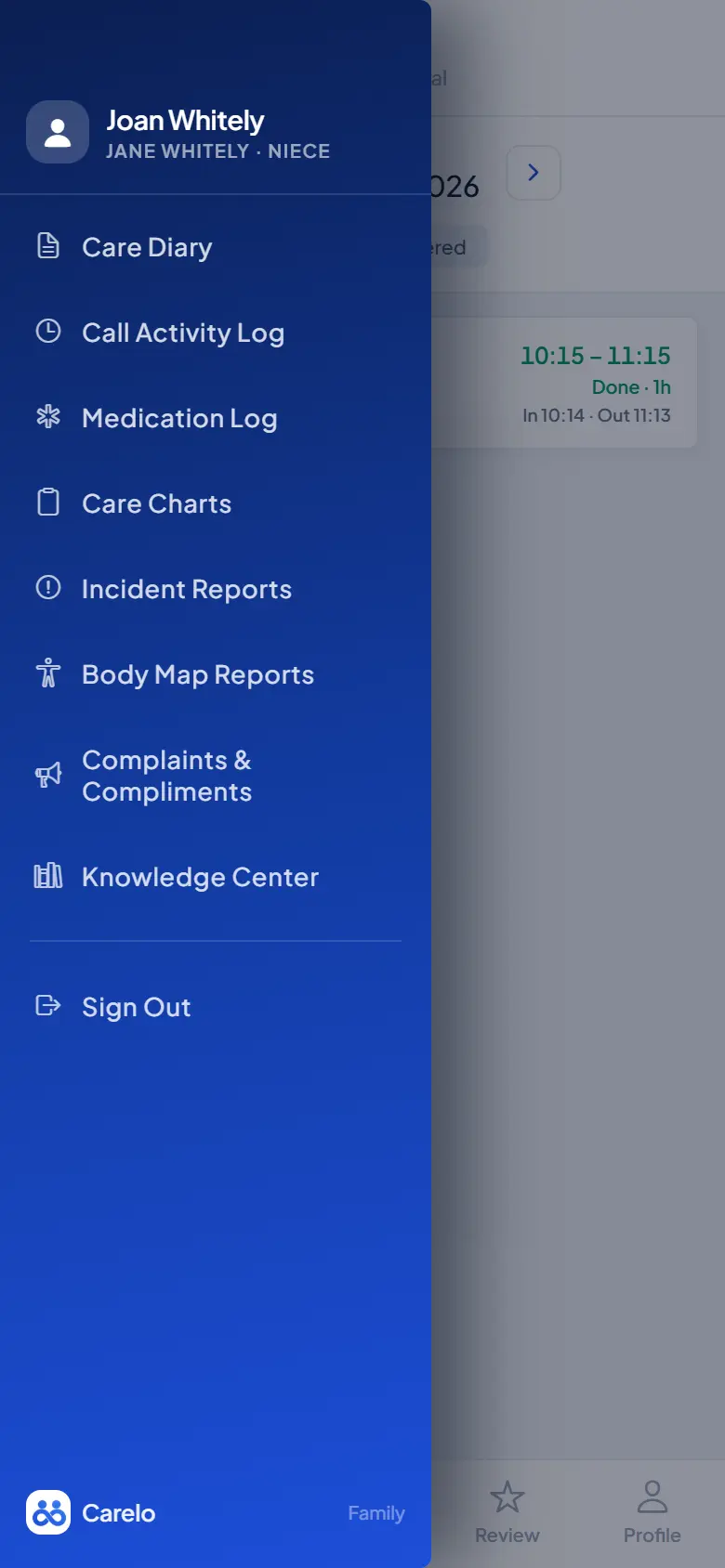
Side menu (in this order): Care Diary, Call Activity Log, Medication Log, Care Charts, Incident Reports, Body Map Reports, Complaints & Compliments.
Care — the person's care at a glance.
Schedule — the two-week schedule with live check-in and check-out as they happen, with a Next day control.
Care Diary — every case note written about the person, week by week, by every carer, with the family's own comments.
Medication Log — every medication record: given, refused, amount.
Call Activity Log — each call's check-in and check-out times.
Care Charts — chart entries the carers recorded.
Incident Reports and Body Map Reports — the reports carers sent about the person.
Messages — a chat with the office. Families and carers never message each other.
Review — rate a carer who visited the person in the last 30 days; the reviewer types their own name because a login can be shared.
Complaints & Compliments — raise a complaint or concern (about a carer's care or conduct, a missed or late call, medication, safety or safeguarding, communication with the office, invoices or billing, help using the app, or something else) or send a compliment. The office answers on its Complaints desk and the reply shows here with a status: Received, Being looked into, Resolved (compliments: Sent, Thank-you received).
Profile — About, Documents, Medications, and the person's home address and contact details.
Rules worth knowing
Delivered-care records are the office's records: a family reads them and comments, it does not edit them.
A DNACPR recorded by the office shows as a red strip in the family app as in the carer app.
A household on the personal plan sees the same app without the reviews and complaints tabs.
Common questions
Can the family see which carer is coming? Yes — the schedule names the carers on each call.
Can a family member talk to the carer in the app? No. Messages go to the office only.
Family login — creating it, up to 10 people, switching and removing
1Sign Out
What it is
A family login lets a relative (or a social worker) see one person's care in the Carelo app. One login can cover up to 10 people. The office creates it on the service user's profile; the family member sets it up once with a setup code and then opens the app with a private 6-digit PIN.
Where to find it
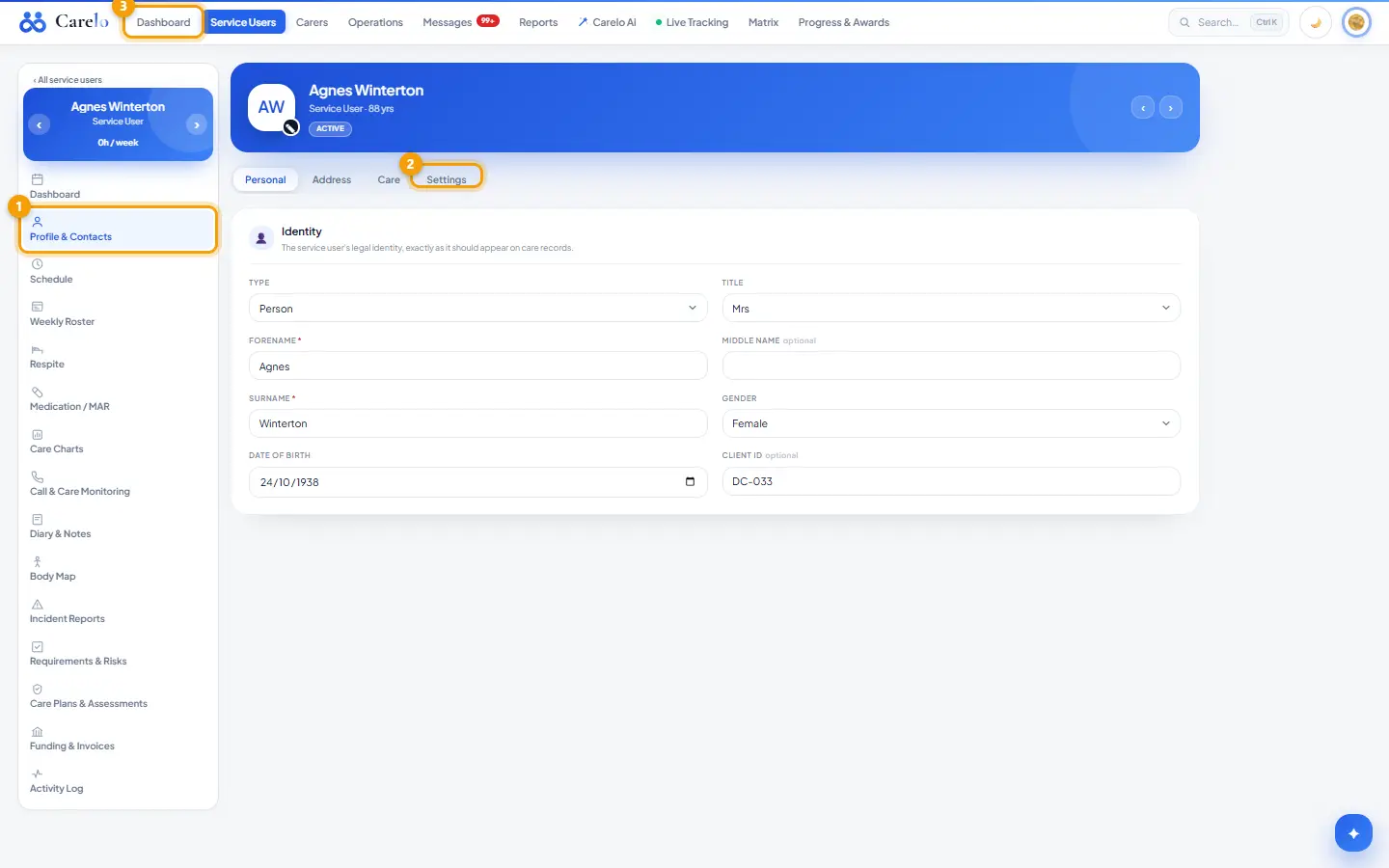
Service Users → open a person → Profile → Family app access (/service-users/[id]/profile).
How to
Create a family login
Under Family app access, enter Name, Relationship and the person's Personal email (required — setup codes and security alerts go there).
Click + Create family login.
A box shows the Company ID, Username and Setup code, valid 24 hours, and says whether it was emailed. The family member opens the app, chooses Family, enters these once, and chooses their PIN.
Add a second person to the same login
Create a family login on the second person's profile with the same email. No new account is made: the person is added to the existing login. The box says "Same login, same PIN. The app now shows … — they tap a name at the top to switch."
Manage an existing login
On the member's row: Setup code (issue a new one-time code), Pause access / Resume access, Remove (confirm: "Remove …'s app access completely? They will no longer be able to sign in."), change the email, and remove a registered device (they then need a new setup code).
In the family app: switch person
Side menu → Switch person (under Sign Out). The pop-up says "Everything in the app changes to the person you choose."
In the family app: remove a person
In the same place the family can Remove a person from their own login. Only that link is dropped; the PIN and phone keep working, and the office sees it at once.
Rules worth knowing
Maximum 10 people on one login: "One login can cover up to 10 people."
A personal email is required for every new family login.
A family member who also has a carer login on the same phone uses Switch login to move between them.
Delivered records are never changed by family access; pausing or removing a login changes only who can see them.
Common questions
Two relatives want access. Create two logins with two different emails. Using the same email adds a person to one login instead.
The setup code expired. Click Setup code on the row to issue a fresh one.
Family app — notifications
What it is
The phone notifications a family login receives. There are four, plus a store-update notice. None of them puts care details on the lock screen.
Where to find it
Delivered by the phone's notification system; the family member taps one to open the right screen in the app.
The notifications
Review request — every Tuesday and Friday at 6pm, asking the family to review the care. Skipped if they have reviewed since the last request.
New carer review request — after a carer's first visit to the person, asking the family to review that carer.
New message from the office — when the office replies or writes in the Messages thread.
Reply to a complaint or compliment — when the office answers on its Complaints desk.
Update notice — both apps show a notice when a new version is in the stores; updating keeps the person signed in.
Rules worth knowing
The notification text never carries care details; the content is inside the app behind the PIN.
There is no per-visit tracking notice or visit banner for families.
Carers' notifications are separate (see *Carer app — Settings and alerts*).
Common questions
A family member asks for fewer reminders. The review ask is skipped automatically once they have reviewed since the last one; the other three only fire on a real event.
Family logins (personal plan households)
What it is
On a personal (household) plan, the page where the household decides who can see its loved ones in the Carelo family app: who has a login, which loved ones they see, who pays for it, and the one-time setup code that gets them in.
Where to find it
Account menu → Family logins (next to Sign out). Only the household admin sees it; care provider companies are sent home.
How to
Add a family login
Press + Add a family login.
Enter Name, Relationship and Their personal email.
Tick the loved ones they may see.
Choose who pays: on the household's plan, or they pay themselves. The first login is included in the plan.
Press Create login (the button also shows the monthly amount from the price table).
A panel shows the Company ID, Username, the One-time setup code (or "sent by email") and Valid until. Press Done ›.
Family side (family app)
Open the Carelo app, choose Family, enter the Company ID, username and code once; after that the app unlocks with a PIN.
Manage a login
Who they see — change the ticked loved ones and Save.
They pay / Put on my plan — switch who is billed.
Setup code — issue a fresh code (new phone, lost code).
Pause / Resume — stop or restore access.
Remove — deletes the login after confirmation; they can no longer sign in.
Rules worth knowing
Up to 5 family logins per household; remove one to add another.
A login needs a name and at least one loved one.
A self-paying login shows Awaiting payment until the app's payment is made; the KPI tiles count active logins and the amount added to the plan.
Loved ones are the household's active service users.
Common questions
One person for two loved ones? One login can cover several loved ones — tick them all.
Chapter 3
For the Office: Giving Access
How the office gives carers and families their logins.
How a carer gets into the Carelo carer app. The office issues a one-time setup code; the carer redeems it on their own phone and chooses a private 6-digit PIN that nobody in the office can see. Every later login is the PIN on an authorised device.
Where to find it
Carers → open the carer → Profile (left side bar) → Settings tab → Open App access, which jumps to the App access card at the bottom of the page. Scrolling to the bottom of the Profile page reaches the same card. There is no App access item in the side bar itself.
How to
Give a carer the app for the first time
Make sure the carer has a personal email on their profile. If not, the card asks for it: Carer's personal email — setup codes and security alerts go there.
Press Create app account and send setup code. The account is created and the setup email goes out in the same step.
The card now shows Company ID (the company's subdomain) and Username.
Carer side (carer app)
Install the Carelo app from the links in the email.
Enter the Company ID, the username and the setup code once.
Choose a 6-digit PIN. From then on the app opens with the PIN.
Issue a new code (new phone, lost code)
Press Issue setup code. If the profile has no email the card asks for one: Save email and send setup code.
The green notice reads "Setup code emailed to the carer … valid until …". Issuing again replaces the previous code.
Remove a device (lost phone)
Under Authorised devices (N of 3) press Remove on the device and confirm. The carer is signed out on it and needs a new setup code to use it again.
Rules worth knowing
A code is valid for 24 hours and is emailed to the carer's own inbox. The office screen never shows a carer's code.
Up to 3 authorised devices per carer.
10 wrong PINs lock a device: it shows LOCKED — needs a new setup code.
A carer can also request a code from the app themselves; the card then says "They requested it from the app — sent to …".
An inactive carer's app access is closed (see the profile page).
Removing a device is audited.
Common questions
The carer says the email never arrived. Check the email on the profile, correct it, and press Issue setup code again — the old code stops working.
Can the office set the PIN? No. Only the carer chooses it, on their phone.
Family app access — logins, setup codes, up to ten people per login
1Profile & Contacts2Settings3Dashboard
What it is
The family signs in to the same Carelo app as carers and sees this one person's care: the two-week schedule with live check-ins, care documents, case notes, messages with the office, and carer reviews. The office creates and manages each family login from the person's profile.
Where to find it
Service Users → open a person → Profile & Contacts → Settings tab → Family app access.
How to
Create a family login
Enter Name, choose Relationship (Daughter, Son, Wife, Husband, Mother, Father, Sister, Brother, Guardian, Social Worker, Friend, Other) and their Personal email.
Press + Create family login.
The page shows the Company ID, Username and a one-time Setup code (valid 24 hours), and emails the same details with the app links. They open the Carelo app, enter the details, press Continue and choose their own private 6-digit PIN. The office never sees the PIN.
Press Done.
Issue a new setup code
On the family member's row press Setup code. If no email is on file, add it in No email for … — add it and the setup code is sent there and press Save email and send setup code.
The row shows when the code was issued, where it was emailed and until when it is valid.
Pause, resume or remove
Pause access / Resume access switches the login off and on without deleting it.
✕ beside a device under the name removes that phone; they need a new setup code to use it again.
Remove deletes the login completely after a confirmation.
Reset password appears only for an older account with no PIN yet (legacy sign-in); prefer issuing a setup code.
Add a second person to an existing family login
Create a login on the other service user's profile with the same email. Instead of a new account, that person is added to the existing login; the page says "already has a Carelo family login — this person has been added to it". In the app they tap a name at the top to switch.
Rules worth knowing
One email = one family. The same email on another service user links the two; the same email twice on the same person is refused ("use their Setup code button above").
One login can cover up to 10 people. The eleventh is refused.
The family sees only this person: their schedule, documents the office marked Show to carers in the app / in app, case notes, office messages and reviews. There is no carer-to-family channel; messages go to the office.
Replies to family messages are sent from the person's Dashboard (Family messages).
Common questions
The family lost their phone. Remove the device with ✕, then press Setup code; the old phone can no longer sign in.
Can one relative see two parents? Yes, through the same-email link above, up to ten people on one login.
Messages — office to carers and office to families
1Messages2Carers
What it is
The company's communication centre: one thread per carer and one per service user's family, in a WhatsApp-style layout, all kept and audited inside Carelo. The only channels are office ↔ carer and office ↔ family. There is no carer ↔ family channel.
Where to find it
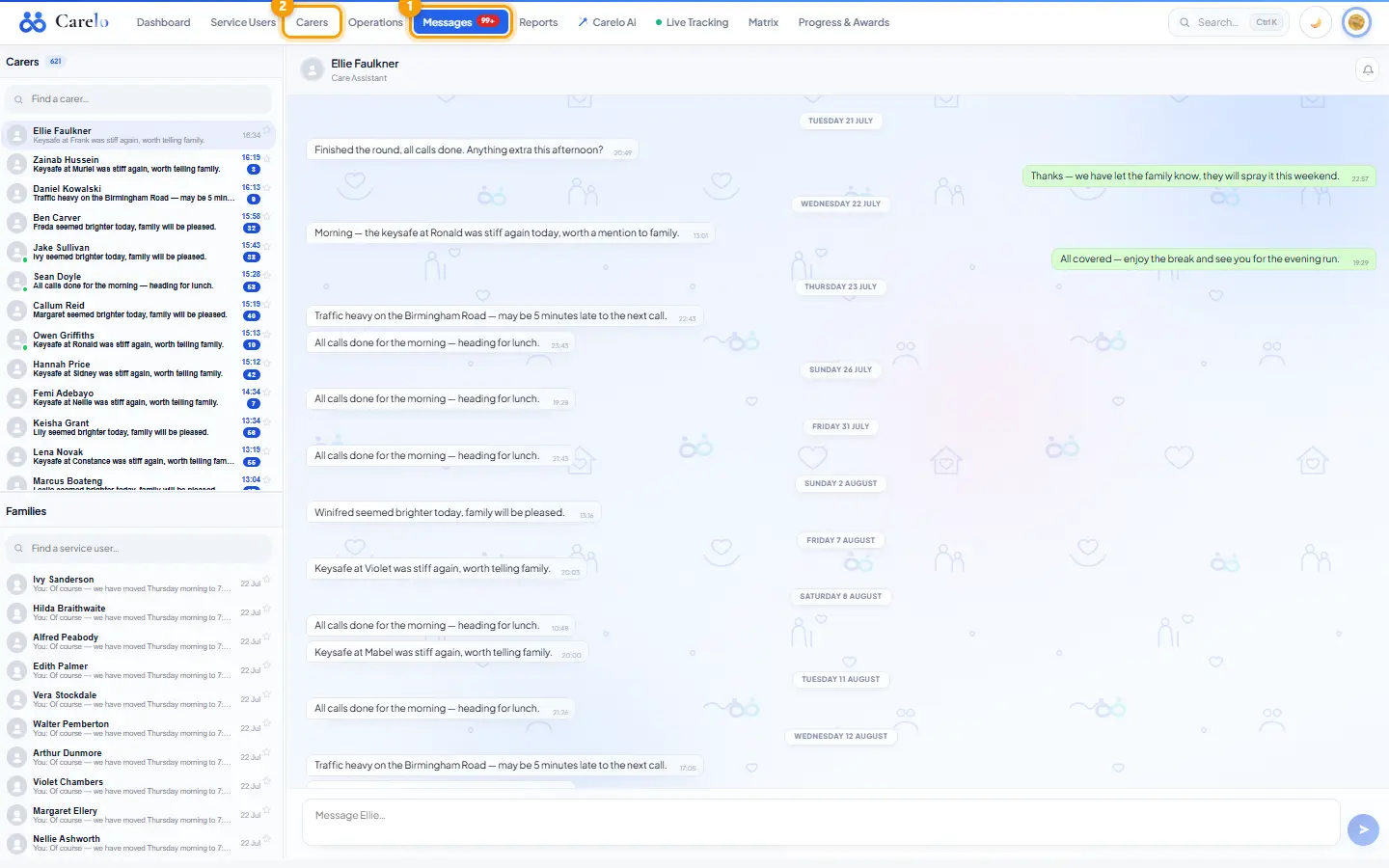
Main menu → Messages. The unread count also shows in the browser tab.
How to
Find and open a conversation
Carers are listed on top, Families below; drag the divider to resize. Search with Find a carer… / Find a service user….
Unread threads carry a blue badge; the most recent conversation opens by itself.
Star a thread to pin it to the top. Mark as unread brings a read thread back.
A dot on the avatar means they are on the app now.
Write
Type in Message … and press Send (up to 2000 characters).
Hover a message for Reply (quotes it), Edit (your own, within 2 hours) or Delete (your own, within 24 hours; readers see "This message was deleted").
The bell mutes the new-message chime.
Carer and family side
Carers see the thread in the carer app and get a push notification for each office message; families see it in the family app. A carer's holiday request or sickness report also posts a line into their thread.
Rules worth knowing
Office ↔ carer and office ↔ family only. Carers never message families through Carelo.
Edit and delete windows are enforced by the database, not just the screen.
A thread with nothing from the other side cannot be marked unread.
Everything is kept for audit.
Common questions
Can I message all carers at once? No — one thread per person.
Questions at any point? Inside Carelo, open Carelo support from the account menu, or write to help@carelo.co.uk.
 Carelo